RafiBase User Guide
Everything RafiBase does, explained with real examples: your wine cellar, your books, your home inventory, a small shop. Written for the Mac, with the iPhone and iPad differences marked as you go.
RafiBase is a personal database. You keep collections of things (bottles, films, tools, customers), each with the fields you choose (a vintage, a rating, a photo, a price), and each thing you add is a record. RafiBase keeps every change, syncs through your own iCloud, and never locks your data in: a copy any app can read is always one click away.
The examples in this guide come from a library with thirteen collections: Movies, Books, Vinyl Records, Wine Cellar, Recipes, Home Inventory, Plants and Travel Log, a pair of Projects and Tasks, and a small shop made of Customers, Products and Sales. Every one of them can be made from a template in a few seconds, so you can follow along.
1Getting Started
The first time you open RafiBase
An empty library shows with three choices:
- : a ready-made collection with its fields, form, dashboard and a few example records.
- : turn a spreadsheet you already have into a collection (see Import and Export).
- : starts with one Name field, and the designer opens so you can add more.
RafiBase never adds anything by itself on a new device, because your library may be about to arrive from iCloud. If you already use RafiBase on another Mac, iPhone or iPad, just wait a moment.
Templates
Choose (or at the bottom of the sidebar). On iPhone and iPad, tap and then .
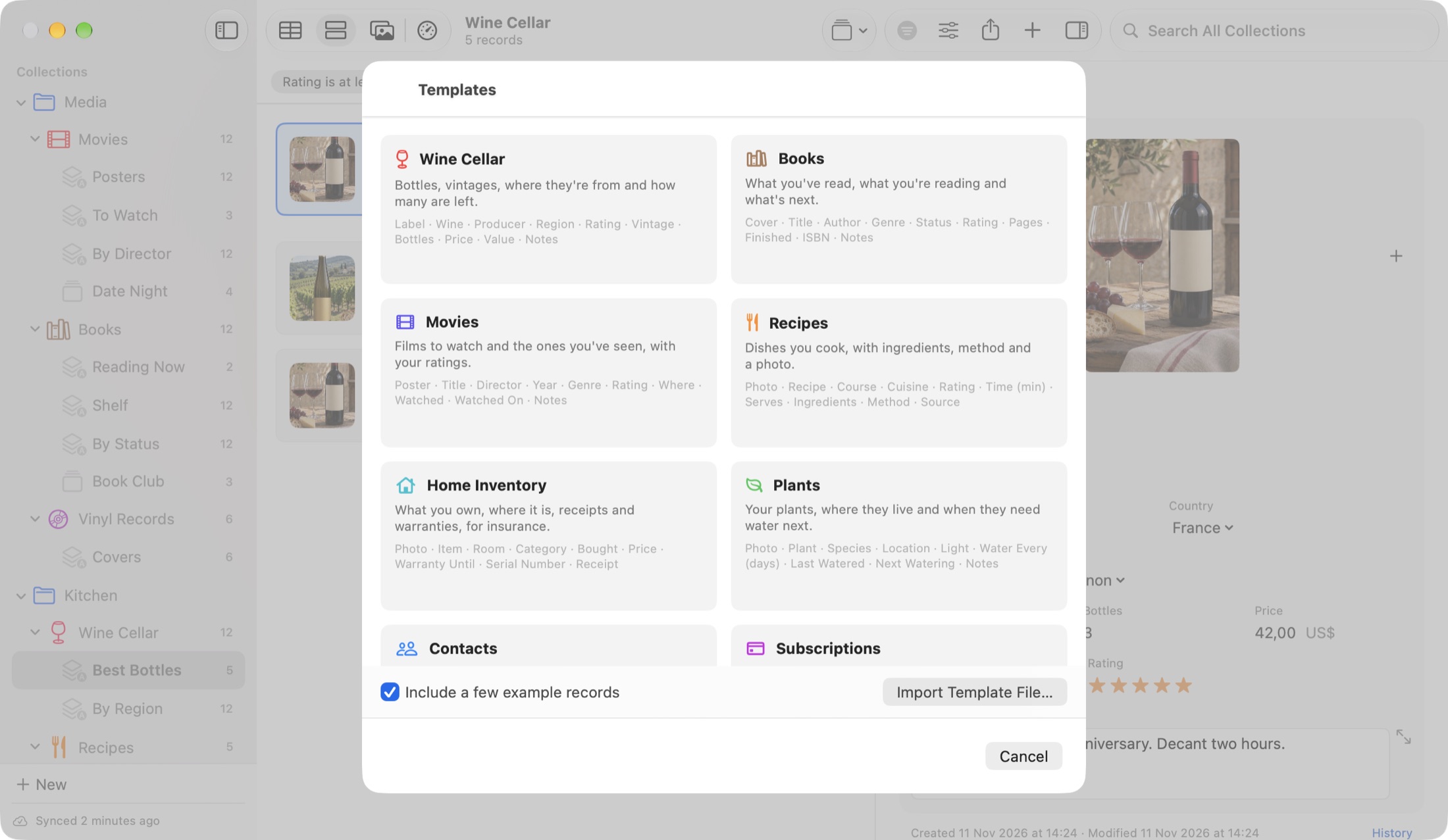
There are 19 templates: Wine Cellar, Books, Movies, Recipes, Home Inventory, Plants, Contacts, Subscriptions, Travel Log, Vinyl Records, Board Games, Vehicle Service, Expenses, Home Maintenance, Health Record, Exercise Log, Event Planning, Job Search and Issue Tracking. Below them are three Linked Collections sets that make several collections already related to each other:
- Projects and Tasks: each task belongs to a project, and each project counts its open and finished tasks.
- Customers, Products and Sales: each sale points to a customer and a product, works out its total, and the customer and product add up their sales.
- Classes and Students: each student can be in several classes.
A linked set arrives in its own folder. Every template comes with a designed form, calculated fields where they help (a wine's Value, a plant's Next Watering, a trip's Nights), and a dashboard. Turn on to get a handful of records with pictures, so you can see how everything fits together. One removes a template again.
The window on the Mac
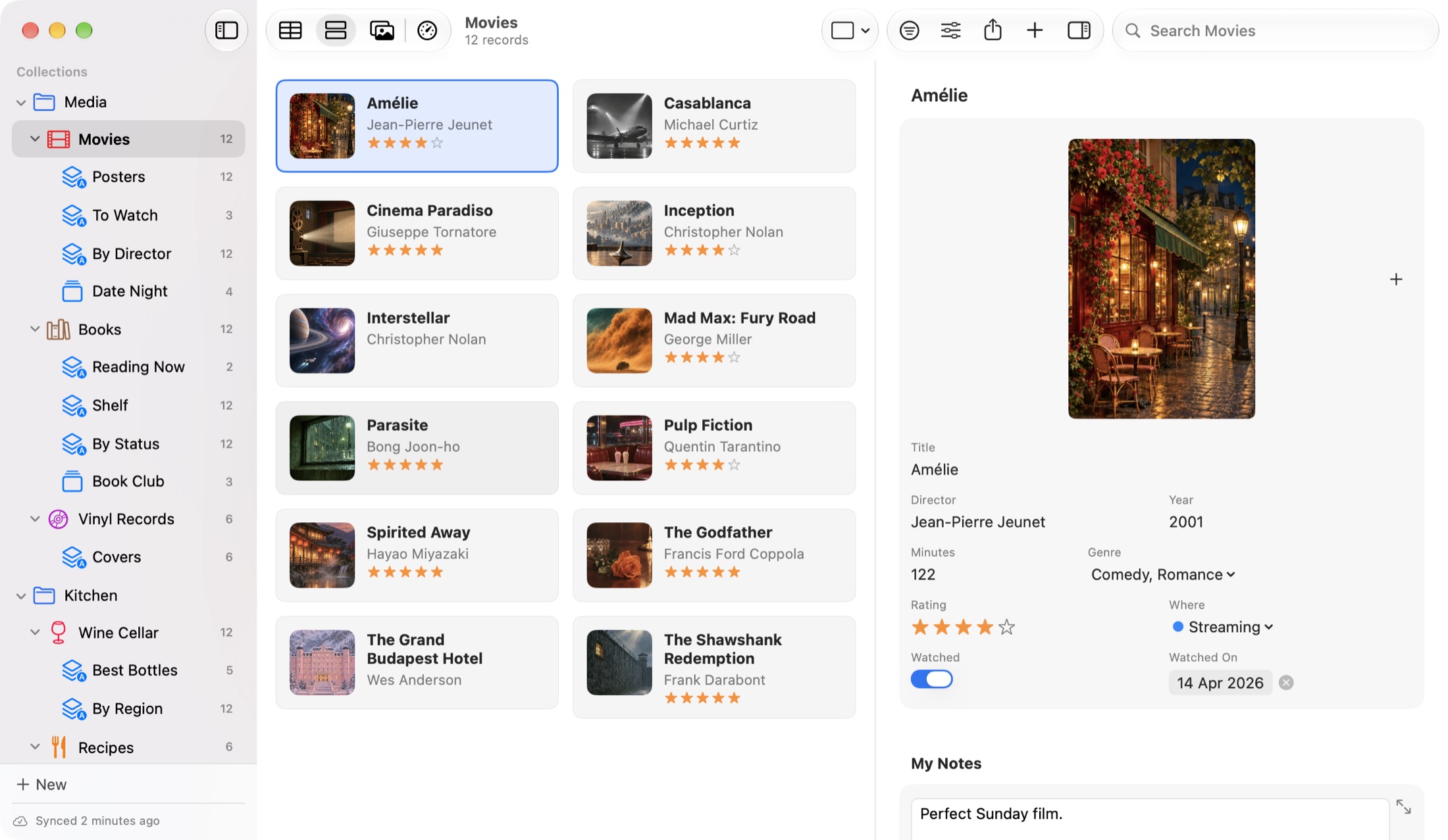
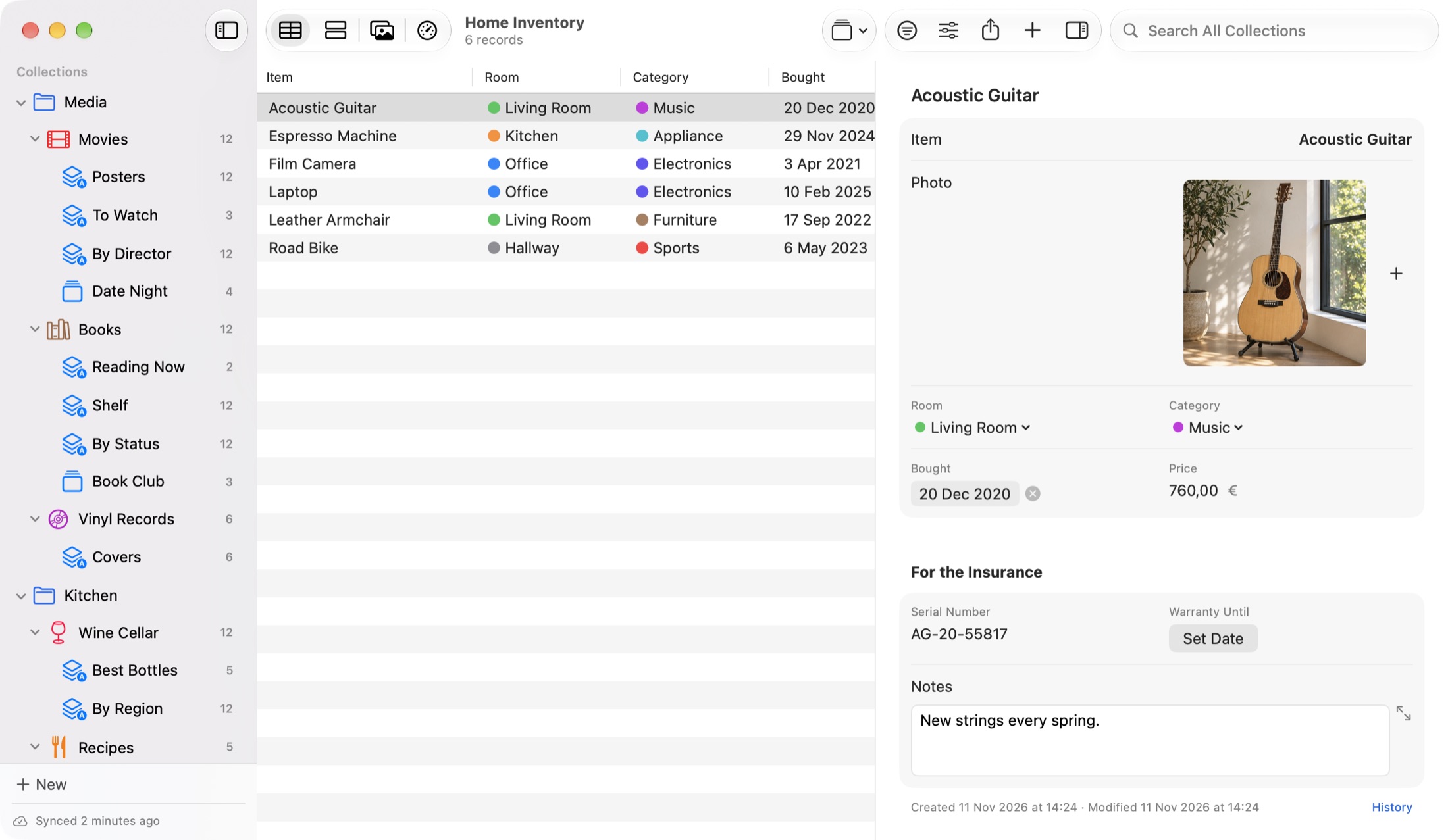
- The sidebar lists your collections, in folders if you like. Under each collection are its smart lists and lists. Trash is the last row. At the bottom are the menu and the sync status ("Synced 2 minutes ago").
- The records show as a Table, Cards, a Gallery or the Dashboard. The window's subtitle says how many records are shown.
- The record panel on the right shows the selected record's form. Show or hide it with ⌘I, and drag the line beside it to make it wider (340 to 560 points, remembered).
- The toolbar has the view buttons, Filter, Design (⌥⌘D), Export (⇧⌘E), New Record (⌘N), the record panel button, and the search field.
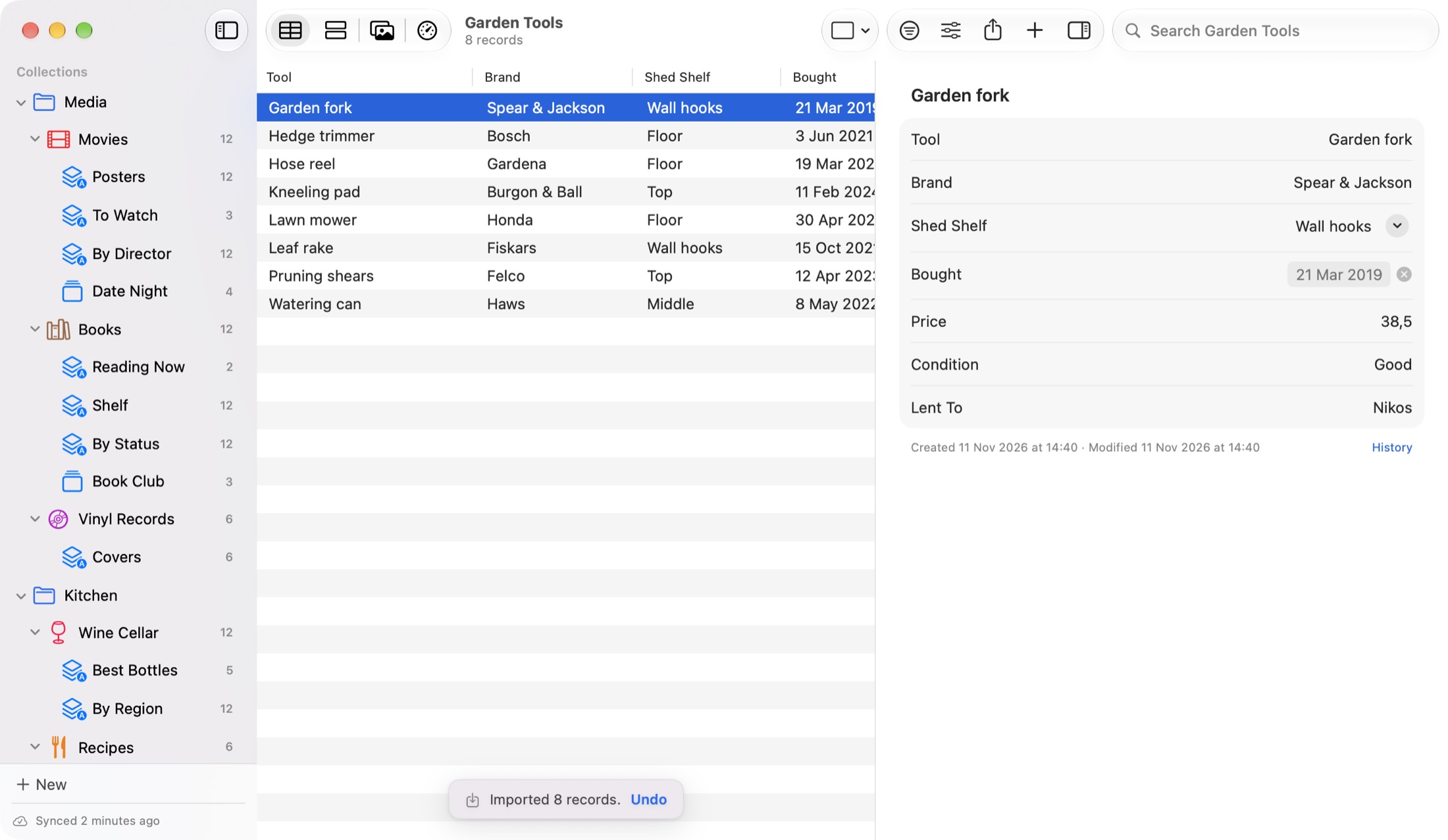
Small notices appear at the bottom of the window after things like deleting, duplicating or importing ("Imported 8 records"), usually with an button. Long jobs, such as a big import or emptying Trash, show a small progress panel and the rest of the app waits for them.
The window can be made narrow: about 920 points with the sidebar and record panel open, about 700 without the sidebar, and about 580 without the record panel.
On iPhone and iPad
The iPhone shows one screen at a time: your collections, then a collection's records, then a record. The iPad shows three columns side by side in landscape: collections, records and the record. Chapter 17 covers both in detail.
2Collections and Folders
Making a collection
- (⇧⌘N) makes an empty one.
- starts from a template.
- (⇧⌘I) makes one from a spreadsheet.
- On iPhone and iPad: then .
Name, icon and color
Right-click a collection in the sidebar and choose or (also in the menu). Pick any symbol and one of 12 colors: blue, teal, green, mint, yellow, orange, red, pink, purple, indigo, brown or gray. On iPhone and iPad, touch and hold a collection, or swipe it to the left.
The number beside each collection is how many records it has (records in Trash aren't counted).
Arranging collections
Drag a collection onto another in the sidebar to move it there, or right-click it and choose or . ⌥⌘↑ and ⌥⌘↓ go to the previous and next collection. On iPhone and iPad, tap the arrows button beside for , where you can drag collections and whole folders into order. The order syncs to all your devices.
Folders
Folders keep related collections together, like Media for Movies, Books and Vinyl Records, or Kitchen for Wine Cellar and Recipes.
- Make one: , or right-click a collection and choose .
- Put collections in: drag them onto the folder, or right-click and choose . Choose to take one out.
- Rename, color or delete: right-click the folder (on iPhone, the beside its name). Deleting a folder keeps its collections; they move to the top of the sidebar. Undo puts the folder back.
Whether a folder is open or closed is remembered on each device. Moving folders up and down is done on iPhone or iPad with Arrange Collections, and the order syncs to the Mac.
Duplicating a collection
Right-click a collection and choose , then either:
- : an empty copy with the same fields, form, smart lists, rules and dashboard. Handy for starting "Wine Cellar 2027" from this year's cellar.
- : the records too, with their relations and list memberships.
Deleting a collection
Right-click it and choose . RafiBase asks first ("It goes to Trash with its 12 records, where you can restore them. A safety backup is made first."). The collection goes to Trash as one item, and Restore brings everything back.
Sharing a design as a template file
Choose to save a collection's design, without its records, photos or files, as a small readable file such as Movies Template.json. It carries the fields and their options, the form layout, smart lists, sorting, grouping, totals, rules and dashboard. If the collection relates to others (Sales points to Customers and Products), those designs come along too, and importing them rebuilds the whole set with relations and formulas working.
To use a template file, open the template picker and click . It makes a new, empty collection. Someone else can do the same on their own Mac.
3Fields
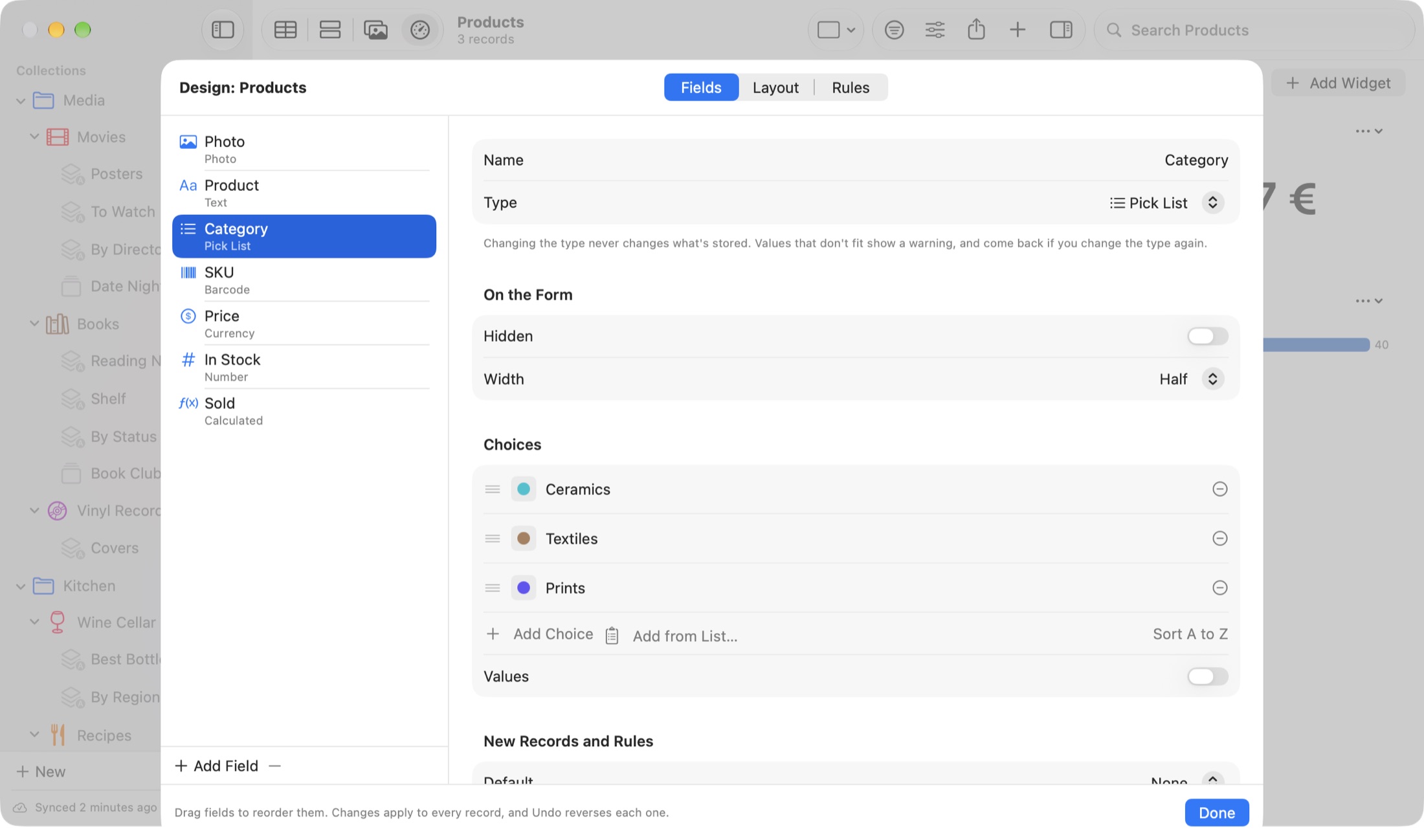
Fields are designed in one place: (⌥⌘D), or the Design button in the toolbar. It has three tabs: Fields, Layout and Rules. On iPhone and iPad, choose in a collection; it has the same tabs and options.
Adding and arranging fields
Click at the bottom of the list and choose a type. Drag fields in the list to change their order; the same order is used by the form, the table and the iPhone. Every change is one Undo step.
Options every field has
- Name and Type.
- Hidden: gone from the form, table, cards and exports, with its values kept.
- Width: Full, Half or Third, so short fields can sit side by side (on the Mac and iPad; the iPhone always shows one per row).
- Default: the value a new record starts with, such as today's date for Bought, or "Living Room" for Room. Defaults apply to records you make with New Record, Capture, Shortcuts, the Share menu or an AI agent, not to imported or duplicated ones.
- Required: the form shows "Required" in orange beside the field's name while it's empty. Nothing is ever refused; it's a reminder. finds the ones still missing something.
Field types
| Type | What it holds | Its own options |
|---|---|---|
| Text | One line, such as a wine's name | Default, Required |
| Long Text | Notes, recipes, anything with several lines | Maximum Height: Automatic or 3 to 30 lines |
| Number | A vintage, a number of bottles, a weight | Decimals (Automatic or 0 to 4), Thousands Separator (turn off for years), Minimum, Maximum, Prefix, Suffix |
| Currency | A price in one currency | Currency (from your region at first), Minimum, Maximum |
| Date | A day, a day and time, or a time only | Show: Date only, Date and time, Time only. Default: today, or the current time |
| Checkbox | Yes or no, such as Watched or Paid | Starts ticked or not |
| Pick List | One choice, such as Region | Choices with colors, icons and values |
| Multi-Select | Several choices, such as Grapes or Genre | As Pick List |
| Rating | 0 to 5 | Symbol: Stars, Hearts or Circles |
| Photo | One or more pictures | Maximum, Read Text in Photos, Copy Text Into |
| File | PDFs, documents, anything | Maximum |
| Relation | Records in another collection | Records From, Several Records |
| Location | A place on a map, with its address | Search or drop a pin |
| Website, Email, Phone | Addresses and numbers | The iPhone shows the matching keyboard |
| Barcode | A code, such as an ISBN or serial number | Scan on iPhone; drop a picture on the Mac |
| Calculated | A value worked out by a formula | Formula and Result type (see chapter 8) |
| Date Created, Date Modified | Filled in automatically | Read only |
A number outside its Minimum or Maximum is kept, but shows in orange in the table and with a warning mark on the form. lists them.
Choices for pick lists and multi-selects
Select the field in Design to see its Choices. Click , click a name to rename it, drag to reorder, or . You can also edit choices straight from the form or a table cell: open the field's menu and choose .
- Color and icon: click the small square before a choice to give it a color, a symbol or an emoji. Bordeaux in red, Rioja in orange, Mosel in green makes a cellar easy to scan.
- Values: turn on to give each choice a number or code, such as 1 to 5 for Quality or +30 for Greece. A formula can then use the value instead of the name ().
- Add from List…: paste one choice per line, or a name and value separated by a comma ("Greece,+30"). A preview shows what's new before you add.
- Ready-made lists: countries, continents, US states, languages, currencies, months, days of the week, seasons, priority, status, yes/no/maybe, quality, sizes and colors, ready to paste in and trim.
Removing a choice never empties the records that use it; they keep the value with a warning, and Undo brings the choice back.
Changing a field's type
You can change a field's type at any time. RafiBase never changes what's stored: values that don't fit the new type show a warning mark, and look normal again if you change the type back. Turning a Text field holding "12 kg" into a Number keeps "12 kg" exactly as it was.
Deleting a field
Click at the end of the field's options (on iPhone, swipe it left). The field goes to Trash with all its values, and Restore brings it back. A formula that used it shows #REF until it's restored or changed.
4Records and the Form
Adding, duplicating and deleting
- New Record: ⌘N, , or in the toolbar. It starts with the fields' defaults and appears at the top of the list. Made inside a List, it joins that list.
- Duplicate: ⌘D. Copies the values, relations and list memberships.
- Delete: ⌘⌫, or the Delete key in the table. Records go to Trash, and Undo brings them straight back. On iPhone, swipe a row to the left.
There's no Save button. Every change saves by itself: after a two-second pause in typing, when you leave a field, pick another record, or quit. Each pause is one Undo step.
Working with several records
⌘-click and ⇧-click select several records in the Table, Cards or Gallery. Right-click the selection to , , , or . Drag them onto a list in the sidebar to add them, or into TextEdit or Numbers to paste them as CSV lines.
The record form
The form shows a record's fields as you laid them out in Design. Empty fields show a grey hint. Below the fields are the record's Lists, its Related Records (see Relations) and a footer with when it was created and changed, and a button.
Designing the form: Layout
The Layout tab of Design arranges the form, with a live preview of a real record on the right.
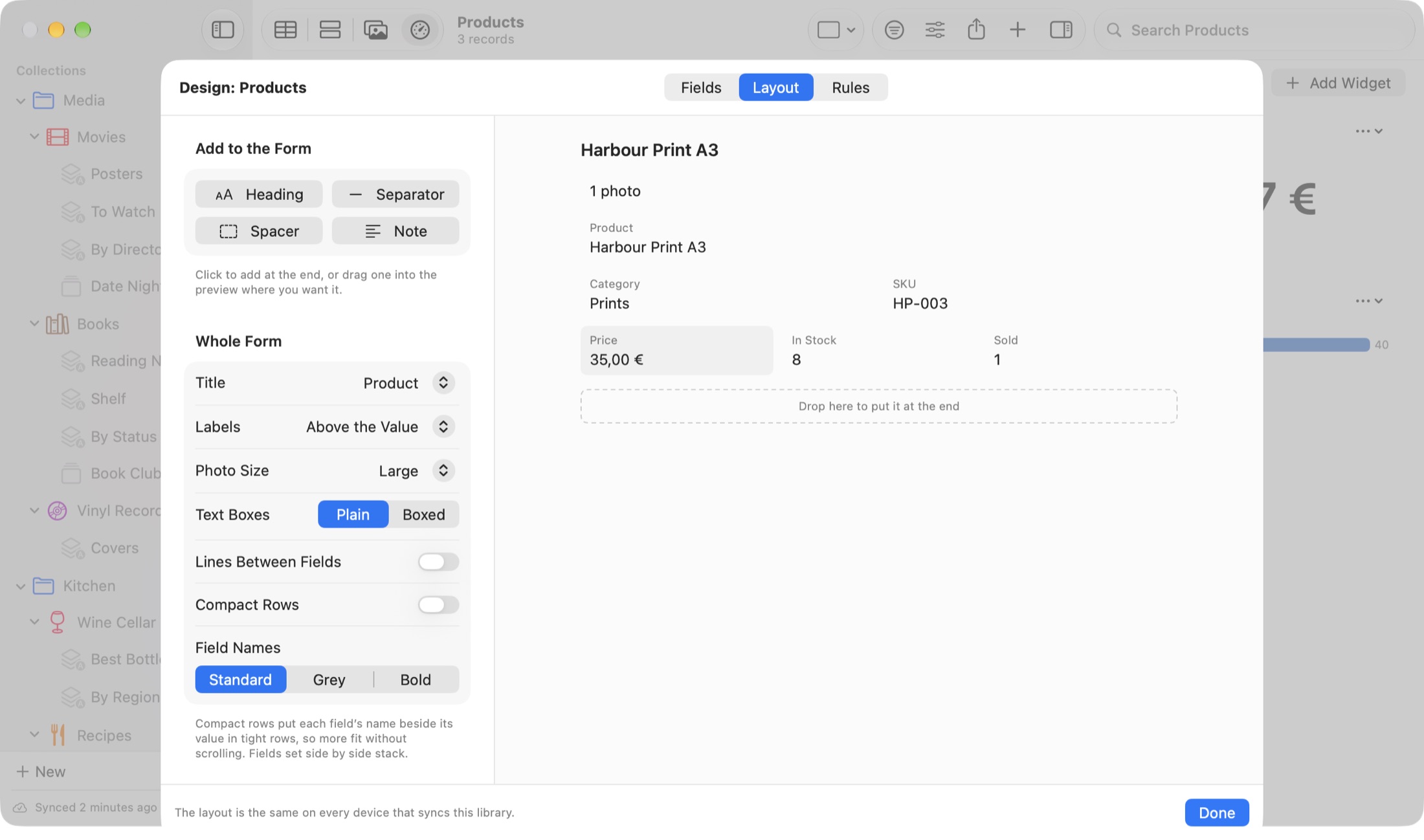
Whole Form settings:
- Title: the field that names each record in lists, relations, search results and Spotlight. Any text-like field (Text, Barcode, Website, Email, Phone).
- Labels: field names beside the value, or above it.
- Photo Size: Small, Medium or Large.
- Text Boxes: Plain or Boxed.
- Lines Between Fields.
- Compact Rows (Mac): each field's name beside its value in tight rows, so long forms fit without scrolling.
- Field Names (Mac): Standard, Grey or Bold.
Add to the Form adds a Heading (which can fold open and closed), a Separator line, a Spacer to keep a gap in a row, or a grey Note shown on every record ("Check the warranty card before you sell"). Click to add after the selected item, or drag one into place.
Click an item in the preview to set its Width, whether its name shows, its Value style (Regular, Bold or Large), a Long Text field's height, or a Photo field's height. Layout changes sync to your other devices.
What cards, the gallery and lists show
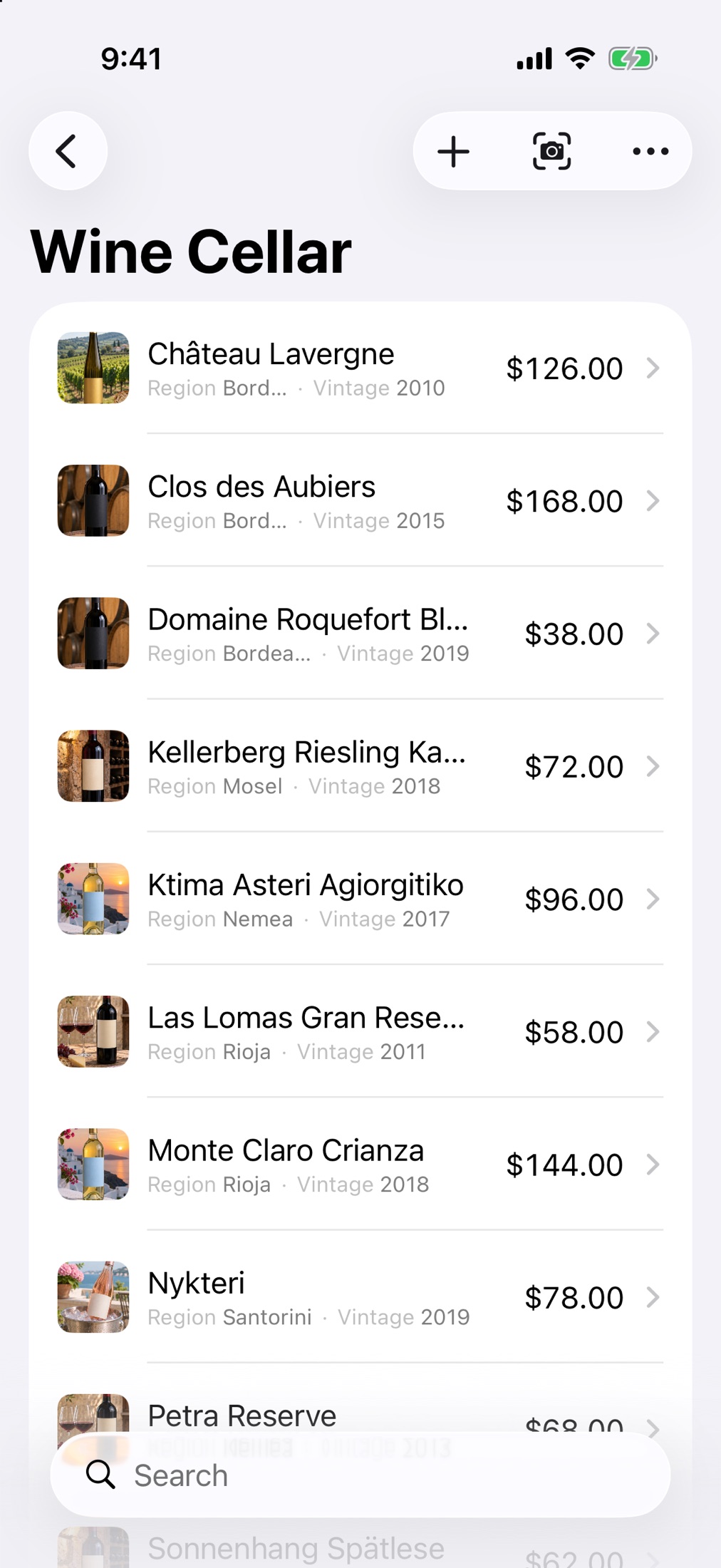
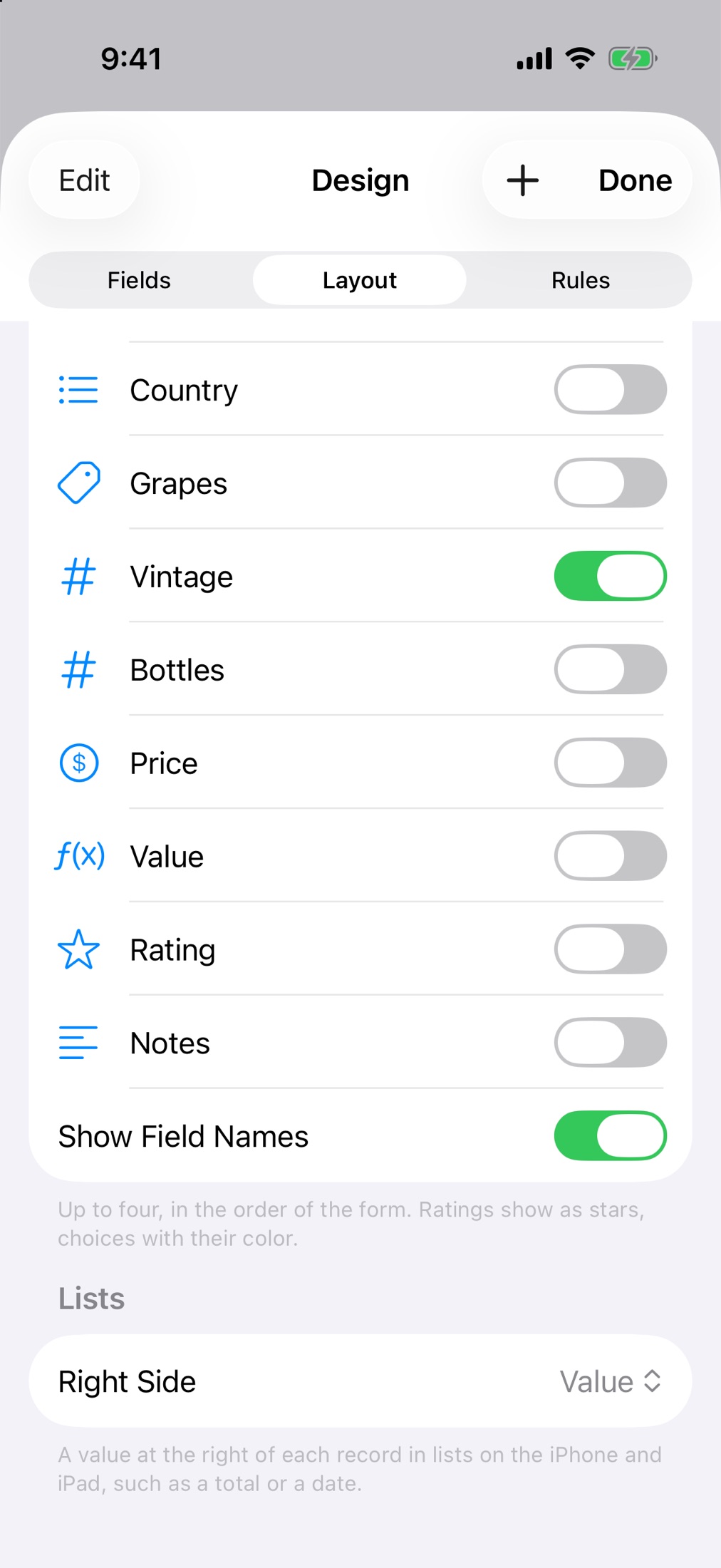
Under Gallery and Cards, chooses what appears under each record's name: the next field of the form, or up to four Chosen Fields. Turn on to label them ("Region Rioja · Vintage 2011" instead of "Rioja · 2011"). Under Lists, puts one field's value at the right of every row on iPhone and iPad, such as each bottle's value.
Long text
Click the ⤡ button beside a Long Text field, or double-click its cell in the table, to open a bigger editor with spelling and word counts. ⌘Return saves, Escape cancels.
Photos and files on the form
Drop pictures or files onto a Photo or File field, paste them, or click . Drag tiles to reorder them; the first photo is the record's cover on cards and in the gallery. Right-click a tile for , , , , , or . Files show a picture of their first page, and PDFs their page count.
The photo viewer opens with a double-click: zoom with ⌘+ and ⌘-, step through photos with the arrow keys, rotate with ⌘L and ⌘R, and see the camera details and any text in the photo with (⌥⌘I).
Markup (⇧⌘A in the viewer) draws arrows, lines, boxes, text, numbered steps and highlights, blurs out private details, and crops. Each edit keeps the original in History, so nothing is lost.
PDFs open in their own window with page thumbnails and search (⌘G for the next match).
Continuity Camera: takes a photo, scans a document or adds a sketch with your iPhone, straight into the selected record's Photo field.
5Views and the Dashboard
Every collection can be shown four ways. Choose with the buttons at the left of the toolbar, or ⌘1 Table, ⌘2 Cards, ⌘3 Gallery, ⌘4 Dashboard. Each smart list remembers its own view.
Table
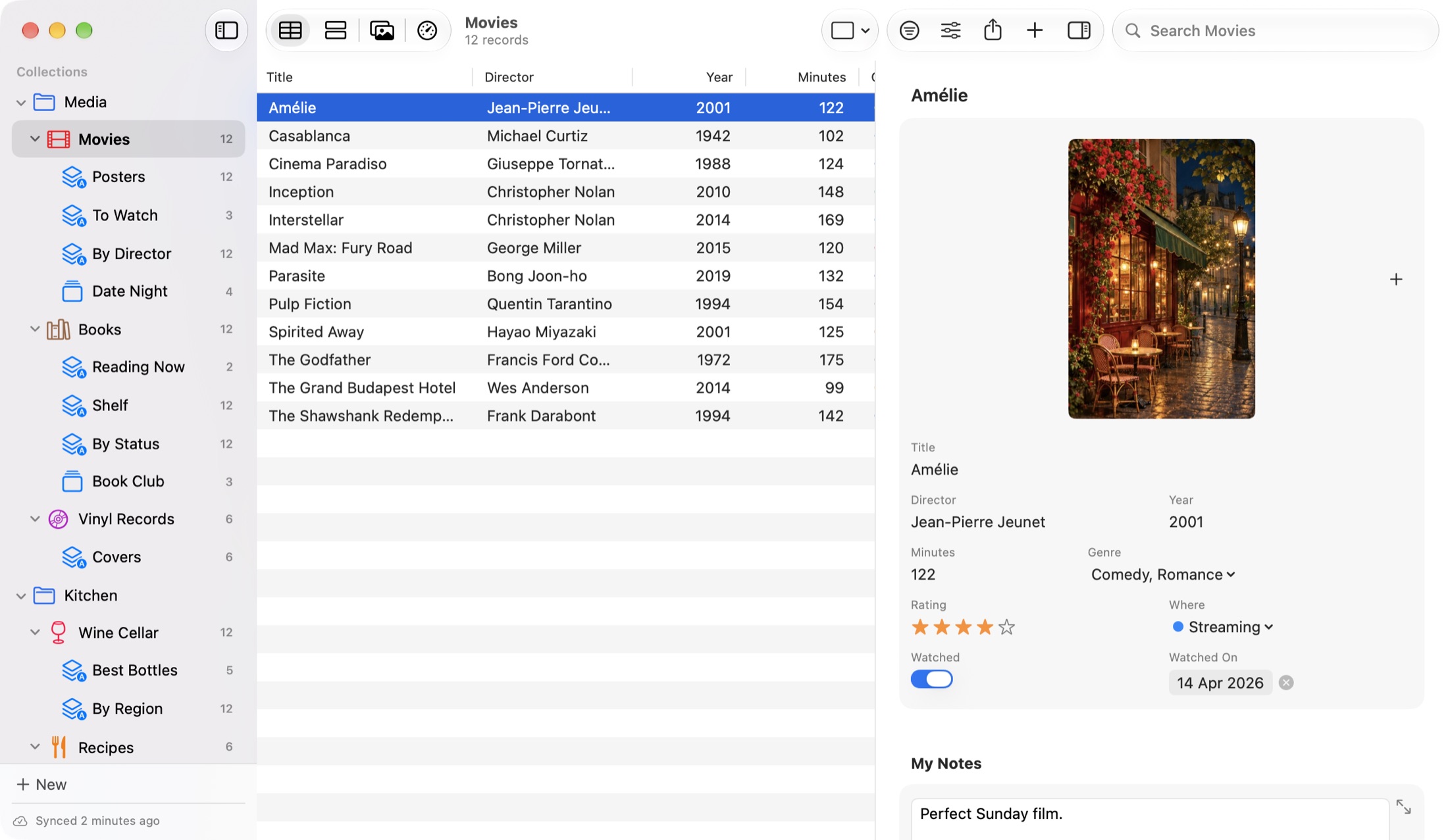
- Drag columns to reorder them and their edges to resize them; RafiBase remembers.
- Type straight into simple cells. Double-click a pick list cell for a menu of its choices.
- Return shows the record in the panel.
- Right-click a column header to hide it, or use . Hidden columns are also left out of exports and printed reports.
Cards
A grid of cards with the cover photo, the title and up to four fields. Good for collections you browse, like Movies or Recipes.
Gallery
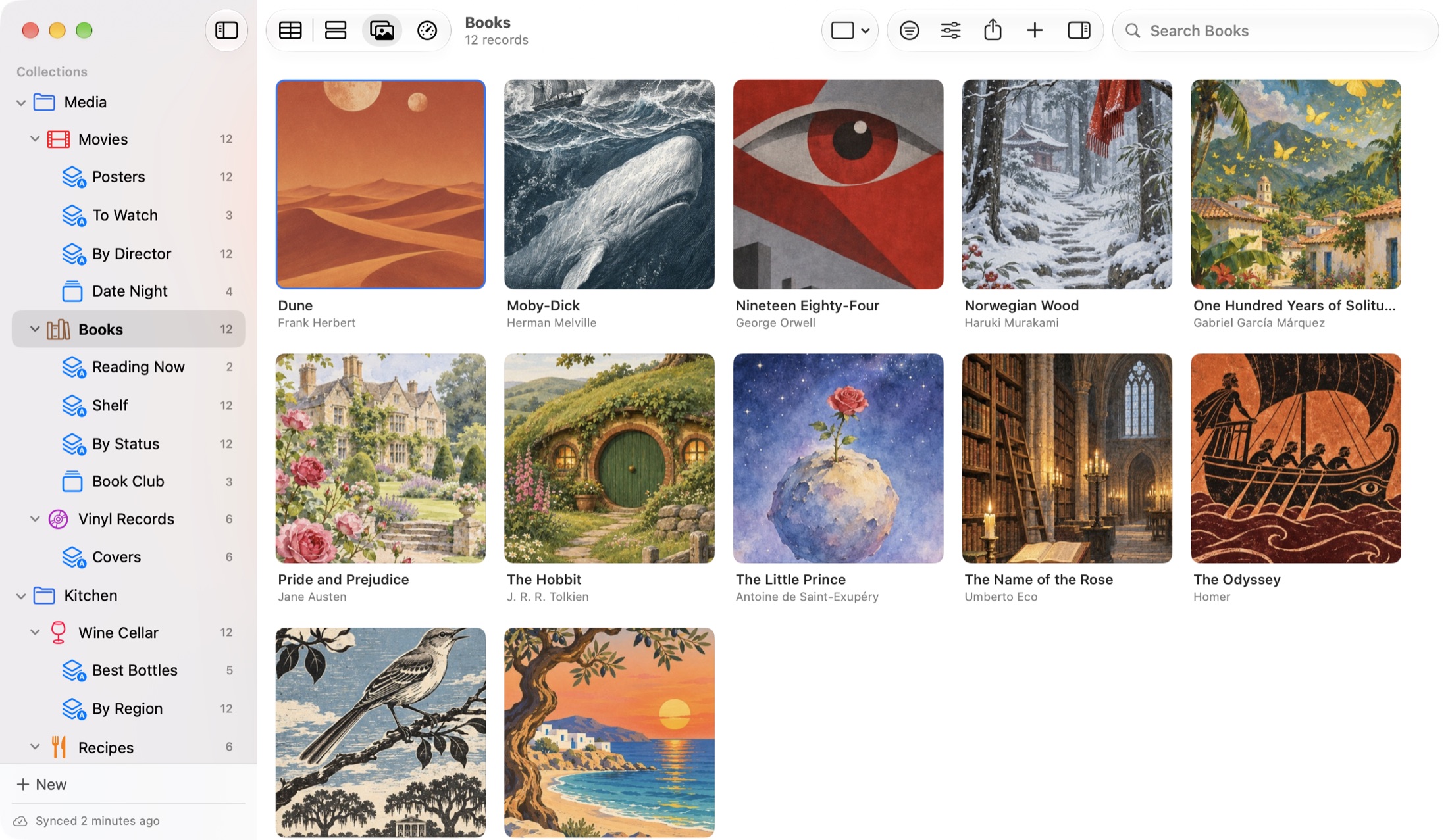
Big pictures, with up to three fields under each name. Records without a photo show the collection's icon.
Dashboard
The dashboard turns a collection into numbers and charts that stay up to date as records change, here and on your other devices.
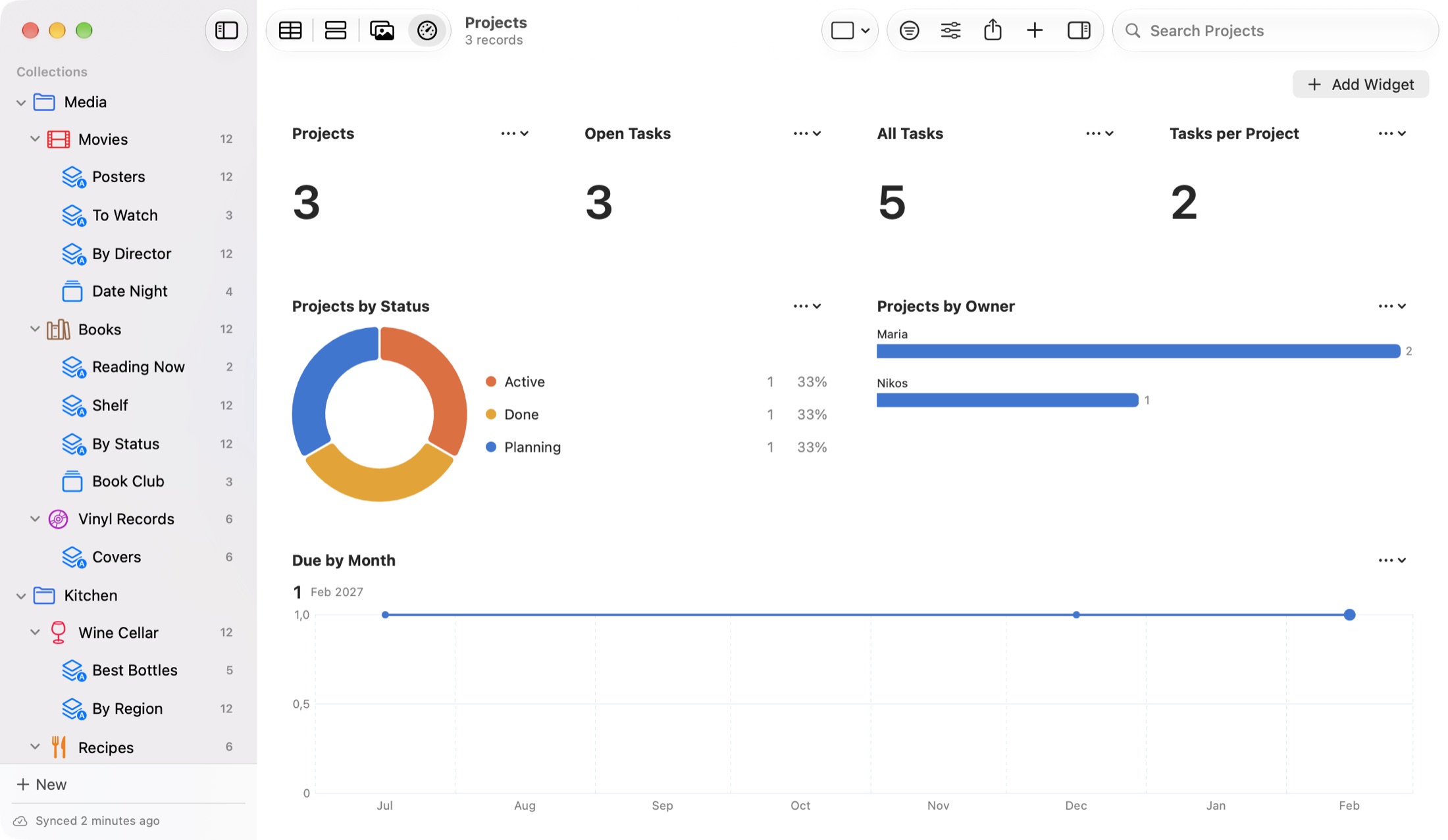
Click and choose:
- Type: Number (a count or total), Bars, Donut, Line Over Time, Compare Fields or Map.
- From: All Records, or one smart list, such as only the unpaid sales.
- Group By (bars and donut), the Date Field (line), or the Location Field (map).
- Show: the number of records, or a number or currency field, As its Sum, Average, Minimum or Maximum.
- Width: Quarter, Half or Full. Quarters suit headline numbers.
The on each widget has , , , , and .
Line Over Time
A line chart groups dates by day, month or year. Left on Automatic, it shows a point a day when the records span about three months or less, a point a year past three years, and months in between. picks one yourself. On the Mac, hovering over the line shows a dashed guide and the nearest point's value and date; on iPhone and iPad, tap a point.
Compare Fields
A bar per field, each worked out over the same records, largest first. Use it when your fields are the things you want to compare.
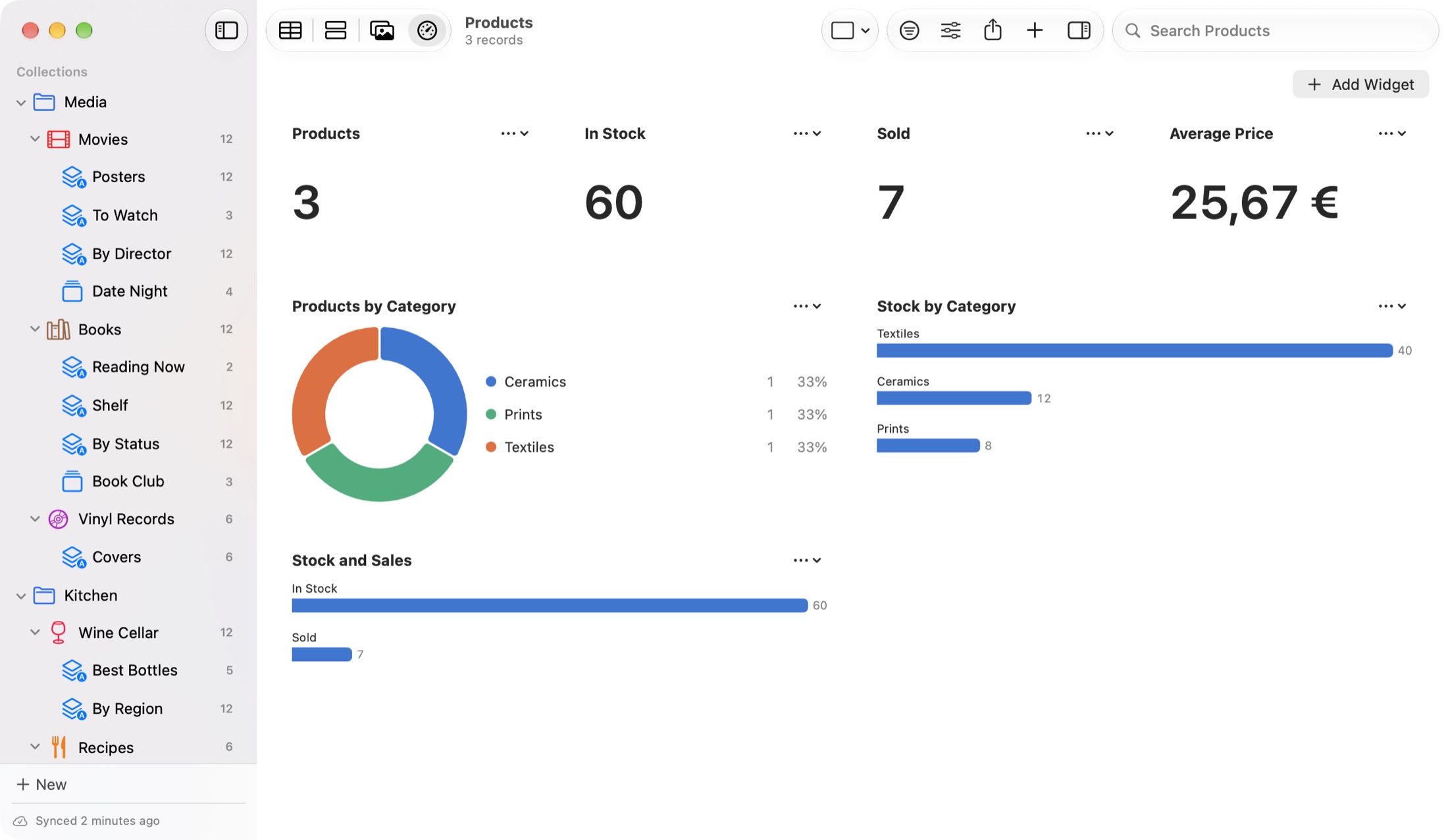
Bars, Donut and Map
Click a bar or a donut's legend row to see the records behind it, and open one. Past 10 bars or 6 slices, the rest are added up as Other. A map shows a pin for every record with a place; click it for a larger map.
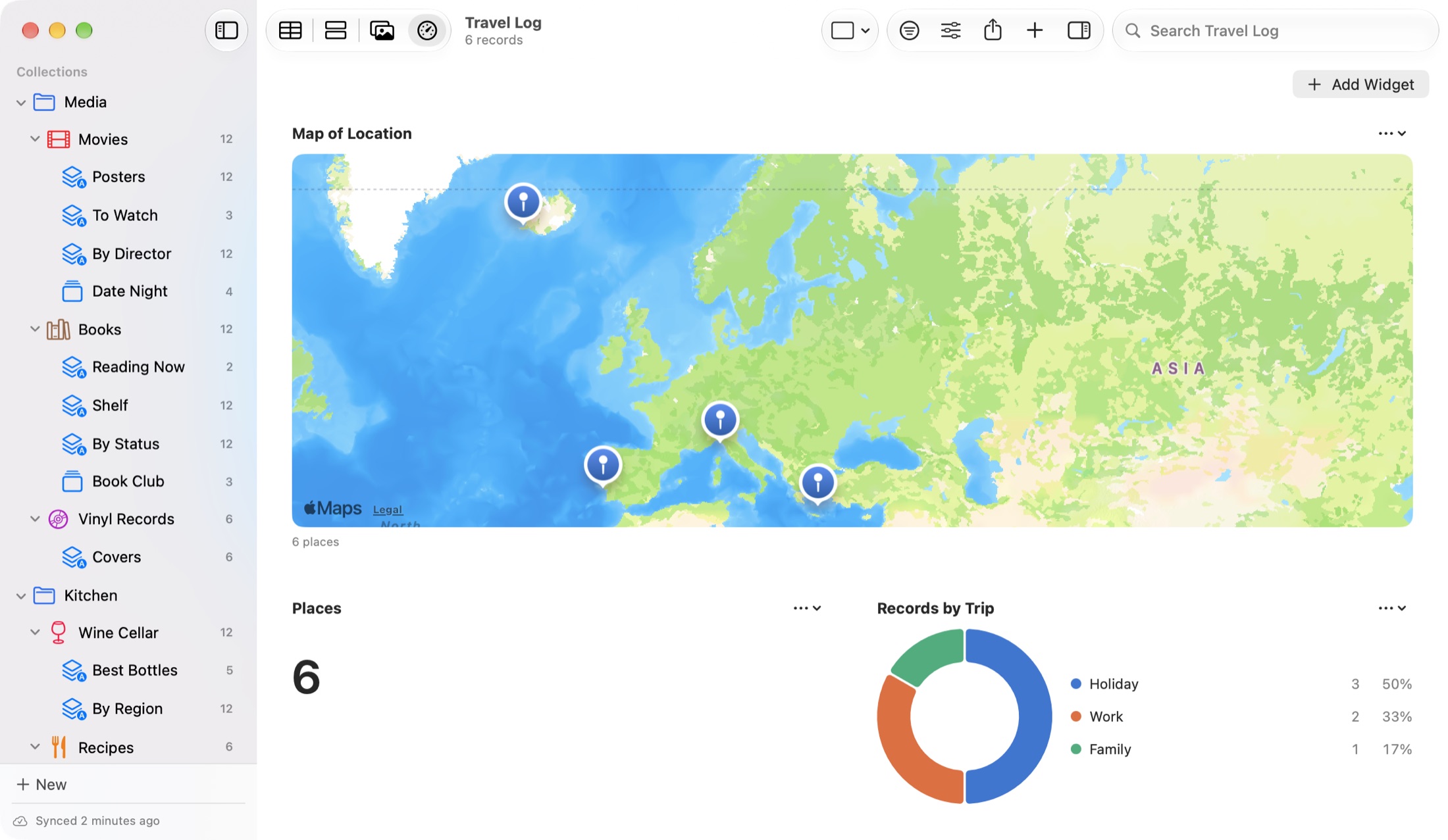
6Finding Records
Search
Type in the search field (⌘F) to look through the open collection as you type. To look everywhere, press ⇧⌘F, or switch the menu beside the field to .
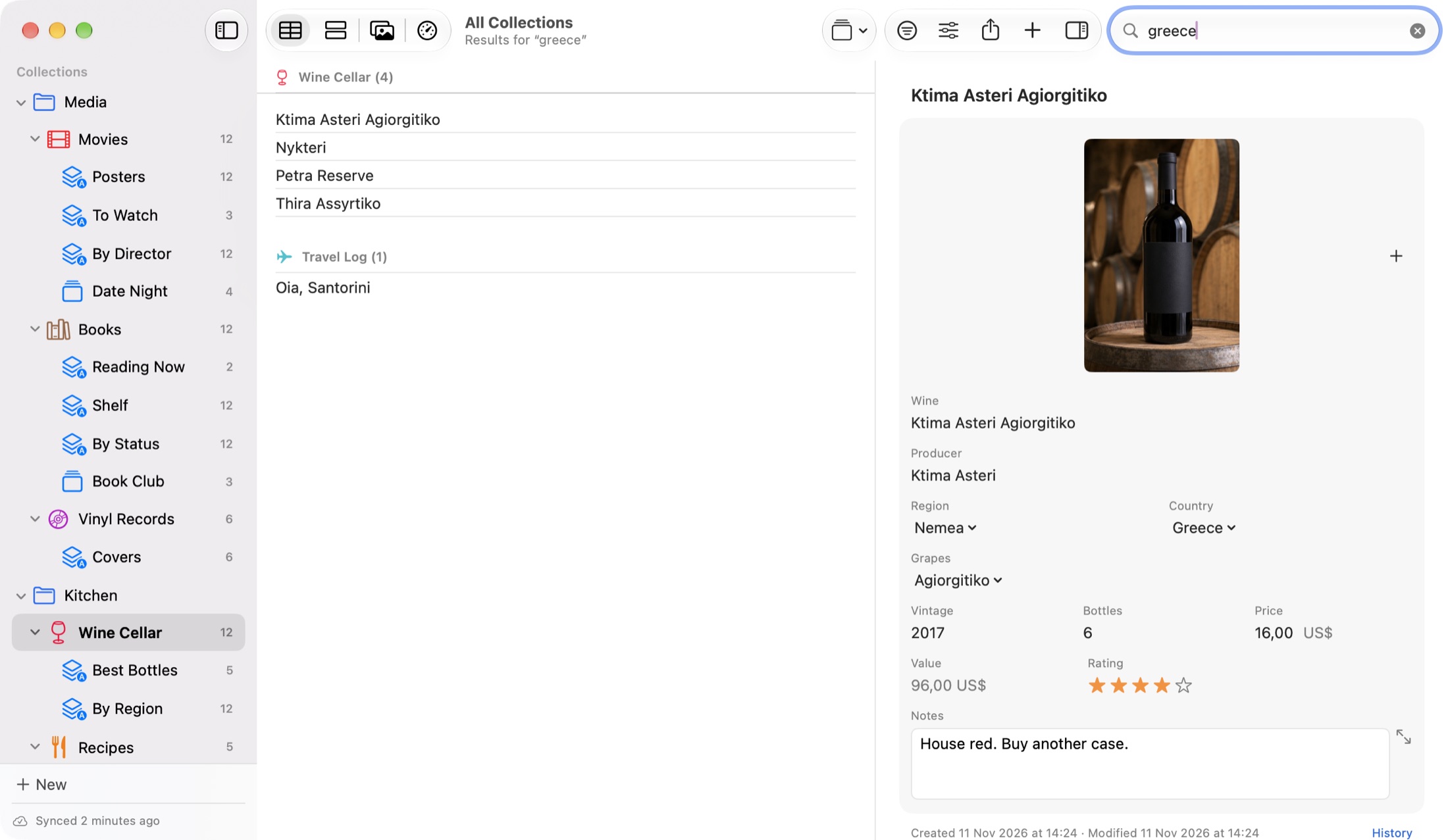
- Search ignores capitals and accents: "chateau" finds Château Lavergne, and Greek works the same way ("καφες" finds "καφές").
- Words match from their start: "nol" finds Nolan, but "blanca" doesn't find Casablanca.
- It finds text, numbers, prices ("18.5"), years of dates, calculated text, and even words inside photos (see chapter 12).
- Searching all collections also lists any collection, smart list or list whose name matches. Click a result to open it.
The filter bar
Click in the toolbar (⌥⌘F) to show the filter bar. Click , pick a field, a condition and a value, and click . Each condition shows as a chip; click it to change it, or its × to remove it. With several conditions, choose or .
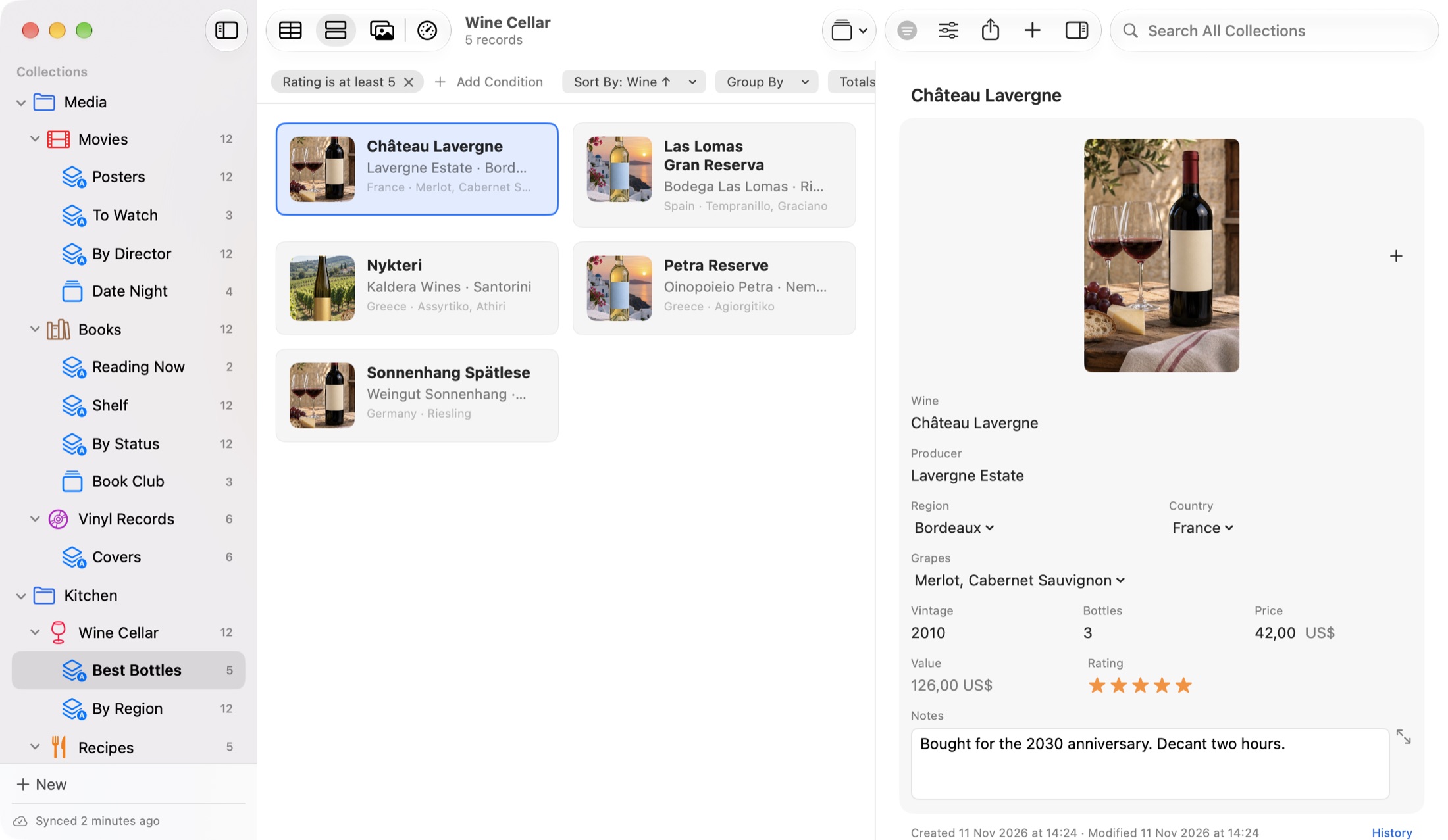
The conditions depend on the kind of field:
| Field | Conditions |
|---|---|
| Text, Long Text, Website, Email, Phone, Barcode, Location | contains, doesn't contain, is, is not, begins with, ends with, is empty, is not empty |
| Number, Currency, Rating | is, is not, is less than, is at most, is more than, is at least, is between, is empty, is not empty |
| Date, Date Created, Date Modified | is on, is before, is after, is in the last N days, is in the next N days, is in the year, is empty, is not empty |
| Time only | is before, is after, is at, is empty, is not empty |
| Pick List | is any of, is none of, is empty, is not empty (Multi-Select also has "has all of") |
| Checkbox | is ticked, is not ticked |
| Photo, File | is empty, is not empty |
| Relation | is related to, has related records, has no related records |
| Calculated | is, is not, is less than, is more than, contains, is empty, is not empty |
Sorting
Choose , the button in the filter bar, or click a column header. You can sort by one field and a second, ascending or descending. Without a sort, the newest records come first. Date Created and Date Modified are at the end of the list.
Smart lists
A smart list is a filter with a name. It sits under its collection in the sidebar with a live count, and is always up to date. Make one from the filter bar with , or with .
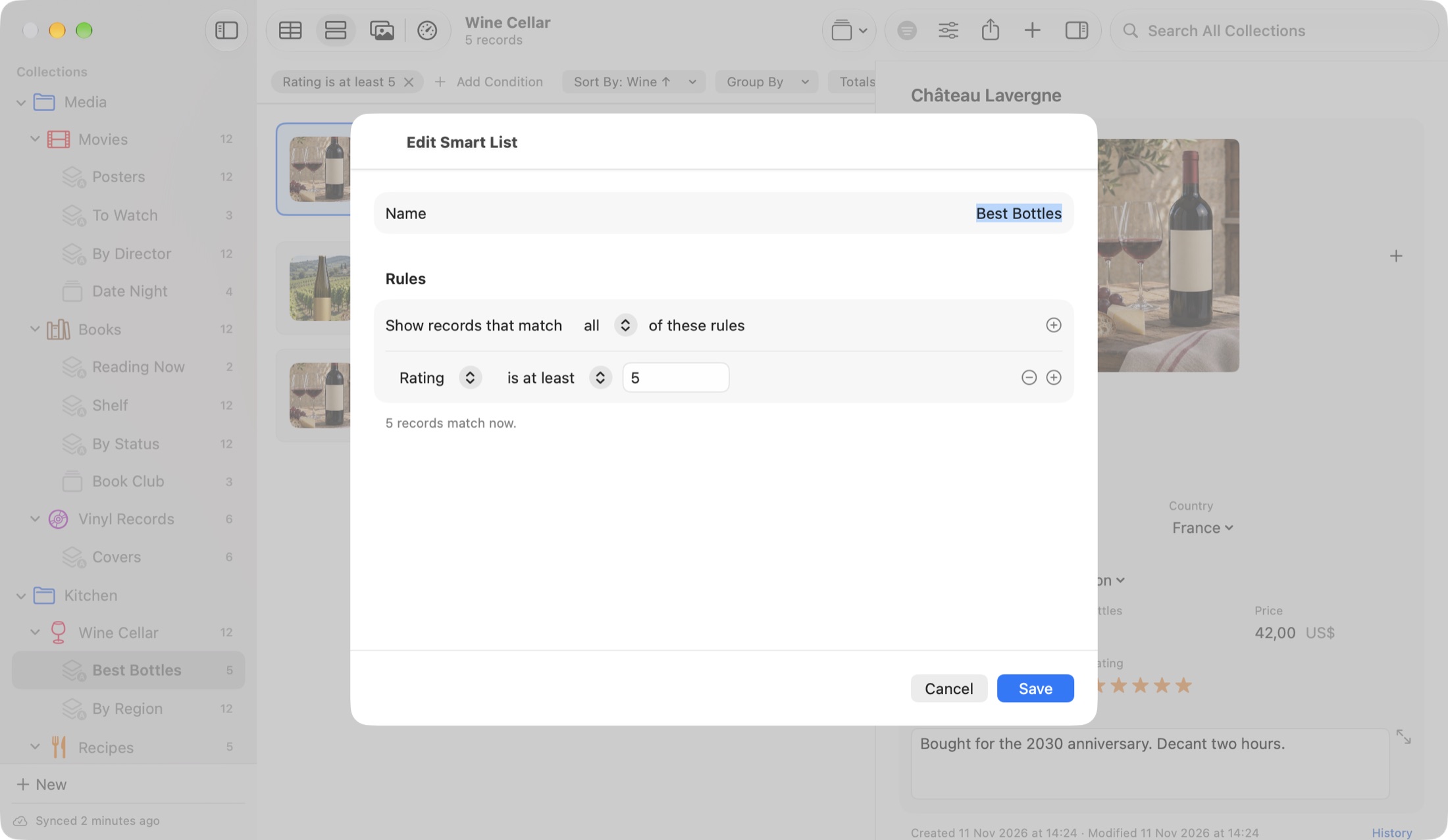
Besides its rules, a smart list keeps its own sort, grouping, totals, visible columns and view. After changing one, the filter bar offers , with and in its menu. Right-click a smart list in the sidebar to edit, export, rename or delete it.
Lists
A list is a set of records you pick by hand, such as the books for this month's book club, or "Date Night" films. Make one with or by right-clicking selected records and choosing . Add records by dragging them onto the list in the sidebar, with , or from the record's Lists row. Removing a record from a list never deletes it, and a record can be in several lists.
Finding records that need attention
and filter the collection to records with an empty required field, or a number outside its minimum or maximum.
7Reports and Printing
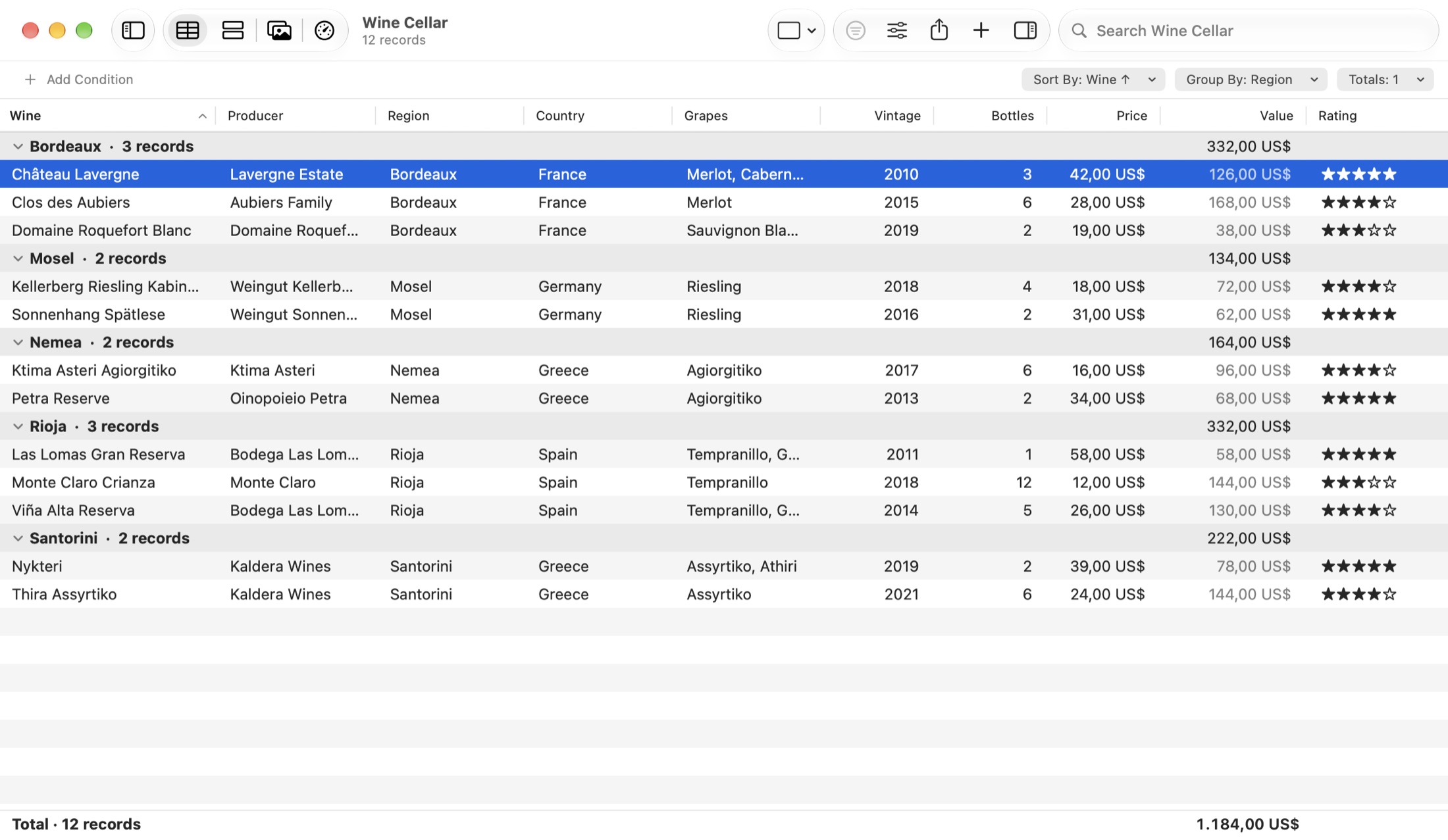
A report in RafiBase is a view that's grouped and totalled. Save it as a smart list and it's there whenever you want it.
Group By
Choose and a field. Pick lists, checkboxes, ratings, relations and text group by value; dates by day, month or year; numbers in ranges you set. Add a second level with , for example Country, then Region. Click a group's heading to fold it.
- Ranges: in the filter bar, and a number field, then type the boundaries, such as
20, 40for prices: Under 20, 20 to 40, and 40 and over. - A record with several choices appears in each of its groups (a film that's both Comedy and Romance shows under both).
Totals
Choose , a field, and Count, Count Filled, Sum, Average, Minimum or Maximum. The grand total shows in a bar under the table, and each group's subtotal on its heading. Columns widen by themselves so totals are never cut off.
Printing a report
(⌘P) prints exactly what the window shows: the smart list, filter, search and sort, the visible columns, group headings, subtotals and totals. Choose PDF in the print panel to save it as a file.
Printing record sheets
(⌥⌘P) prints the selected records one per page, laid out like the form, with photos. Handy for an insurance list from Home Inventory.
8Calculated Fields
A calculated field works its value out from other fields, like a spreadsheet cell. Add a field of type in Design, type a formula, and choose the Result: Number, Currency, Text, Date or Checkbox.
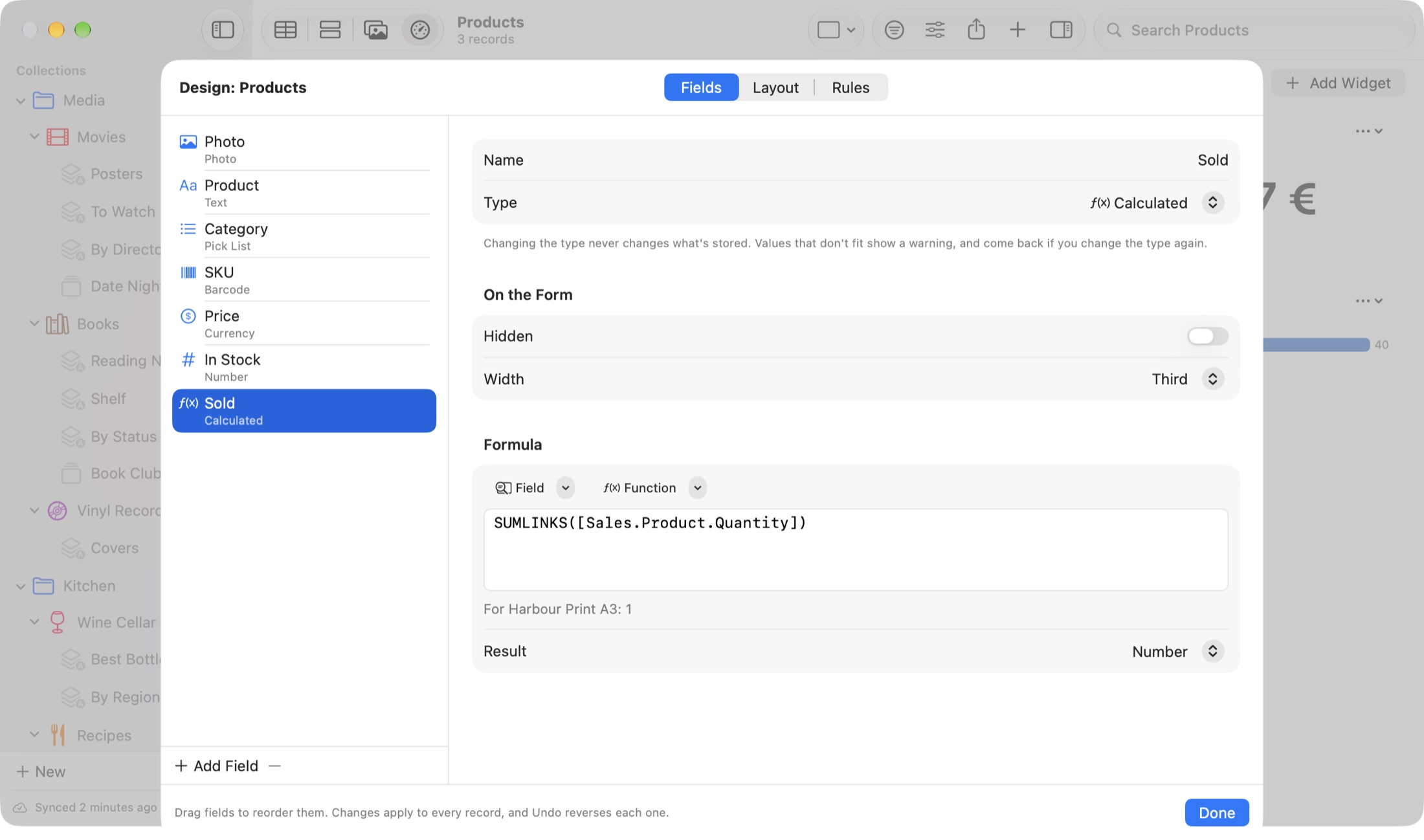
The and menus insert names and functions at the cursor. RafiBase checks the formula as you type and explains any problem in plain words, such as "There's no field called [Prise]. Did you mean [Price]?". Under the box is the result for the selected record. Click (⌘Return).
How formulas are written
- Field names go in square brackets:
[Bottles] * [Price]. - Text goes in double quotes:
"Keep". + - * /add, subtract, multiply and divide. A date plus a number is a later date, and a date minus a date is a number of days.^is a power,%the remainder after dividing.&joins text:[First] & " " & [Last].= <> < > <= >=compare (text ignoring capitals and accents), andAND,OR,NOTcombine conditions.TRUEandFALSEare written as words.- A pick list gives its choice's name, or its value if you chose "In formulas, use: Value".
Formulas from the sample library
| Collection and field | Formula | What it does |
|---|---|---|
| Wine Cellar, Value | [Bottles] * [Price] | What the bottles of a wine are worth |
| Sales, Total | [Quantity] * [Price] | The total of an order |
| Plants, Next Watering | ADDDAYS([Last Watered], [Water Every (days)]) | The next date to water |
| Travel Log, Nights | DAYS([Arrived], [Left]) | How long you stayed |
| Products, Sold | SUMLINKS([Sales.Product.Quantity]) | Units sold, from every sale of the product |
| Customers, Total Sales | SUMLINKS([Sales.Customer.Total]) | What a customer has spent |
| Projects, Open Tasks | COUNTLINKS([Tasks.Project.Done], FALSE) | Tasks of the project not yet done |
All functions
The same list, with a search, is in .
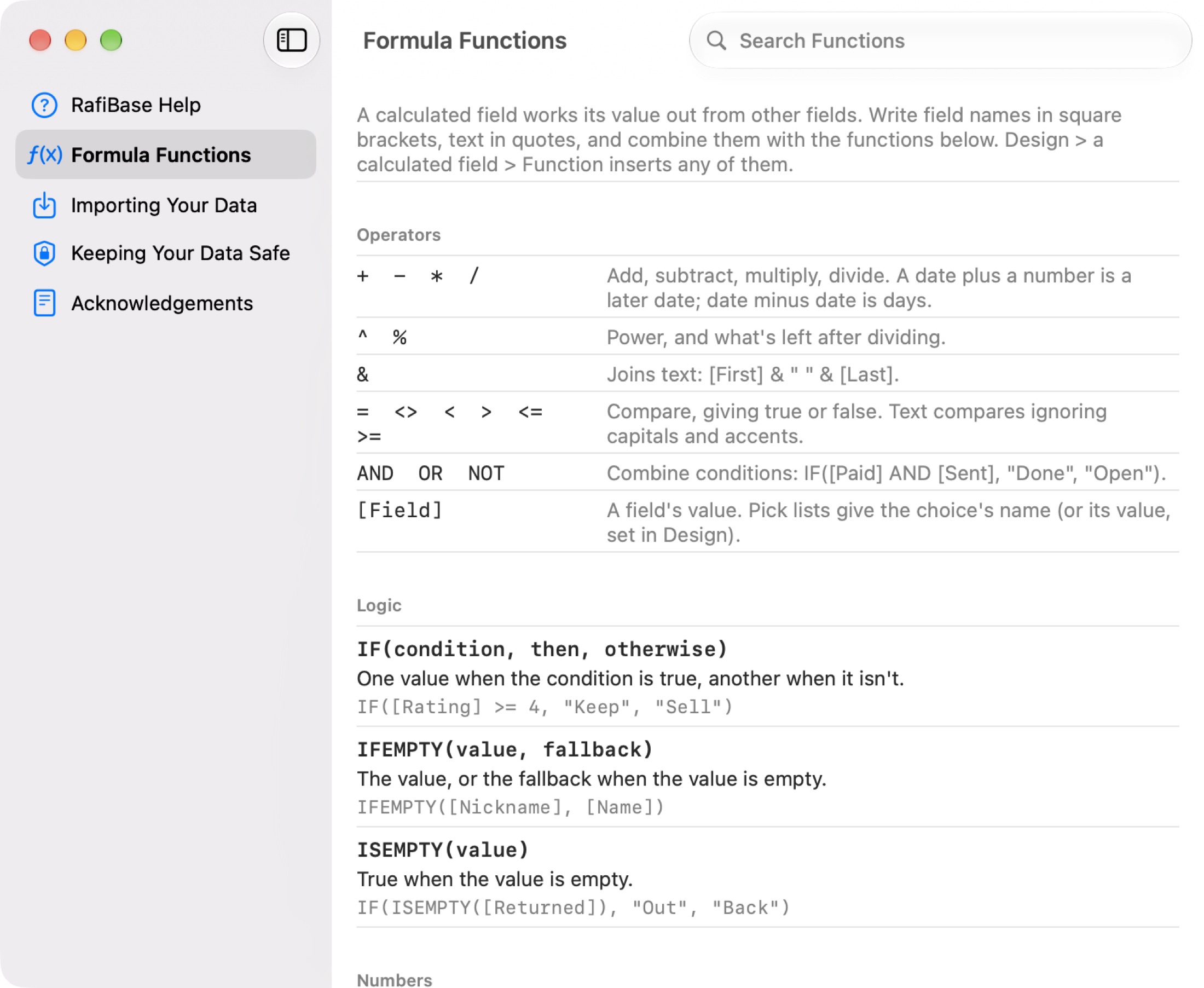
Logic
IF(condition, then, otherwise) | One value when the condition is true, another when it isn't. IF([Rating] >= 4, "Keep", "Sell") |
IFEMPTY(value, fallback) | The value, or the fallback when it's empty. IFEMPTY([Nickname], [Name]) |
ISEMPTY(value) | True when the value is empty. IF(ISEMPTY([Returned]), "Out", "Back") |
Numbers
ROUND(number, places) | Rounds to that many decimals. ROUND([Price] * 1.24, 2) |
FLOOR(number) | Rounds down to a whole number. FLOOR([Hours]) |
CEILING(number) | Rounds up. CEILING([Guests] / 8) tables of eight |
ABS(number) | Without its minus sign. ABS([Budget] - [Spent]) |
MOD(number, divisor) | What's left after dividing. MOD([Year], 4) |
POWER(number, power) | Also written number ^ power. POWER(1.05, [Years]) |
SQRT(number) | Square root. SQRT([Area]) |
MIN(a, b, …) | The smallest; empty ones skipped. MIN([Price], [Sale Price]) |
MAX(a, b, …) | The largest. MAX([Score 1], [Score 2]) |
SUM(a, b, …) | Added up. SUM([Rent], [Power], [Water]) |
AVERAGE(a, b, …) | The average of those not empty. AVERAGE([Test 1], [Test 2]) |
Text
LEN(text) | The number of characters. LEN([Notes]) |
UPPER(text), LOWER(text) | In capitals, or small letters. LOWER([Email]) |
TRIM(text) | No spaces at the ends, single spaces between. TRIM([Name]) |
LEFT(text, count), RIGHT(text, count) | The first or last characters. RIGHT([Phone], 4) |
MID(text, start, count) | Characters from the middle; the first is 1. MID([SKU], 4, 3) |
CONTAINS(text, part) | True when the text has the part, ignoring capitals and accents. IF(CONTAINS([Notes], "gift"), "Gift", "") |
REPLACE(text, find, with) | Every "find" replaced. REPLACE([Phone], " ", "") |
TEXT(value) | Any value as text, to join with &. TEXT([Vintage]) & " " & [Wine] |
Dates
TODAY(), NOW() | Today's date, or the date and time now. |
DATE(year, month, day) | A date from its parts. DATE([Year], 12, 25) |
YEAR(date), MONTH(date), DAY(date) | A date's year, month (1 to 12) or day of the month. YEAR([Bought]) |
DAYS(from, to) | Days from one date to another. DAYS(TODAY(), [Warranty Until]) days of warranty left |
ADDDAYS(date, days) | That many days later (earlier with a minus). ADDDAYS([Last Watered], 7) |
ADDMONTHS(date, months) | That many months later. ADDMONTHS([Last Done], 12) |
AGE(date) | Whole years from the date to today. AGE([Birthday]) |
Related records
COUNTLINKS([Collection.Relation], value) | How many records link here through that relation. With a value, only those whose field equals it. COUNTLINKS([Sales.Customer]) is a customer's number of orders. |
SUMLINKS([Collection.Relation.Field]) | A field of the linking records, added up. SUMLINKS([Sales.Customer.Total]) |
[Relation.Field] | A field of the one record a relation points to. In Sales, [Product.Price] reads the product's price. |
When something's wrong
#DIV/0 | Dividing by zero. |
#NUM | A number that can't be: too big, the root of a negative number, 30 February. |
#TYPE | Text where a number or date was needed. |
#REF | A field that was deleted, or formulas that go round in a circle. |
Fix the formula, or the record's value, and the result works itself out again. Calculated values are worked out on each device, never stored, so they can't conflict between devices. They can be sorted, grouped, filtered, totalled, charted and searched like any other field.
9Relations
A Relation field connects records in different collections: a sale to its customer and product, a task to its project, a book to its author. In Design, add a field of type , choose (another collection, or the same one), and turn on if a record can point to more than one.
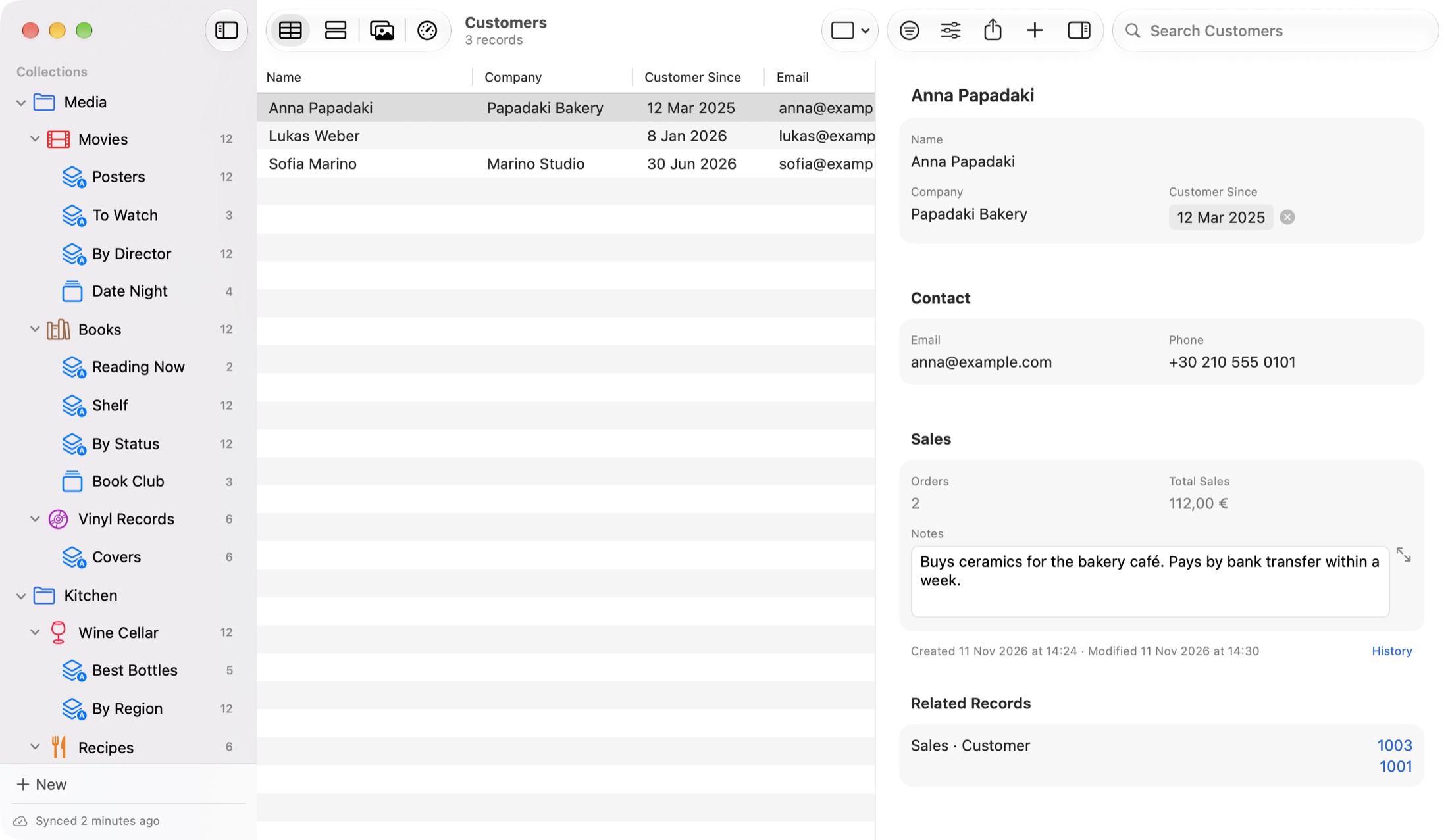
On the form
- Each related record is a small row with its collection's icon. Click it to open that record.
- Point at a row to see the × that removes the link. Only the link goes; the record stays.
- (or for a one-record relation) opens a picker with a search. Tick the records you want and click .
- at the bottom of the picker makes a new record there and then, using what you typed in the search as its name, and opens it so you can fill it in. takes it all back.
Related Records
The other side shows the links automatically. Every customer lists the sales that point to it under Related Records, labelled with the collection and field ("Sales · Customer"). Nothing has to be set up on that side.
Using relations elsewhere
- The table shows a relation column as the related records' names.
- Filters: is related to, has related records, has no related records.
- Group By a relation: one group per related record, such as Tasks by Project.
- Formulas:
COUNTLINKS,SUMLINKSand[Relation.Field](see chapter 8).
Deleting a record removes its links on every device, and restoring it from Trash brings them back.
10Rules Between Fields
Rules work by themselves as you edit a record. Open and click one of the two kinds under .
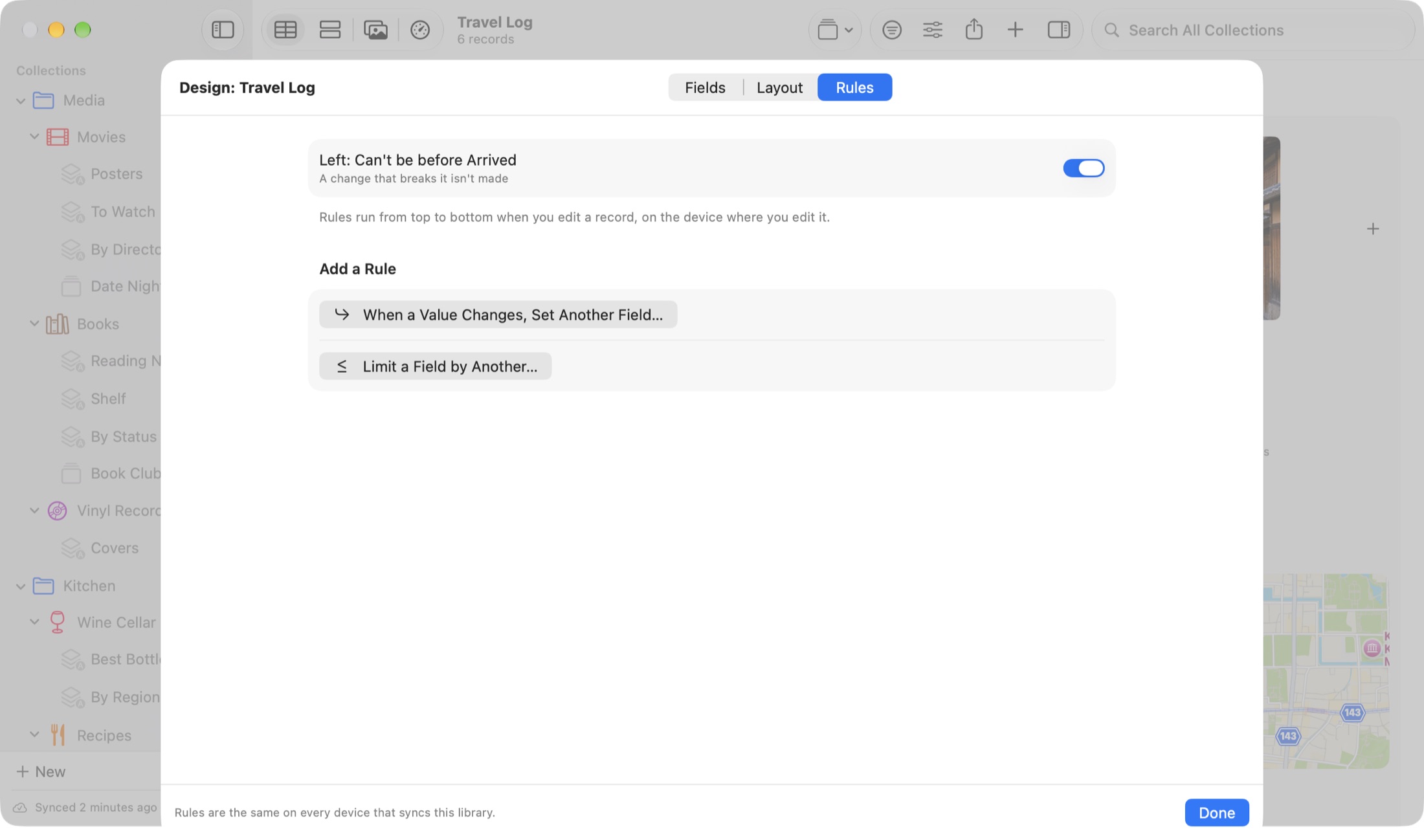
When a value changes, set another field
Choose one or more conditions ( or ), the field to set, and what to set it to: a value, empty, Today or Now for dates, ticked or not for checkboxes.
The rule runs when you change a field it watches. One Undo takes back both changes, and you can still change the set field by hand afterwards. Existing records aren't changed when you add a rule.
Limit a field by another
Keeps a number, price, rating or date within another field: "Price can't be more than Cost", "Left can't be before Arrived". Choose what happens when an edit breaks it:
- Don't Make the Change: the old value comes back and a notice says why.
- Allow It and Mark It: the value is kept, and the field is marked in orange with the reason.
An empty value is always fine. Values that come in by import or sync are never turned down; they're kept and marked.
Each rule has an on/off switch. Rules run on the device where you edit, for new records, edits, bulk edits, Shortcuts, the Share menu and AI agents, but not for imports. They sync, and they travel with duplicates, template files and backups.
11Import and Export
Importing a spreadsheet
Choose (⇧⌘I) and pick a CSV, TSV or Excel (.xlsx) file. From Numbers, Google Sheets, Tap Forms, Bento or FileMaker, export as CSV or Excel first. RafiBase shows a preview before anything is added.
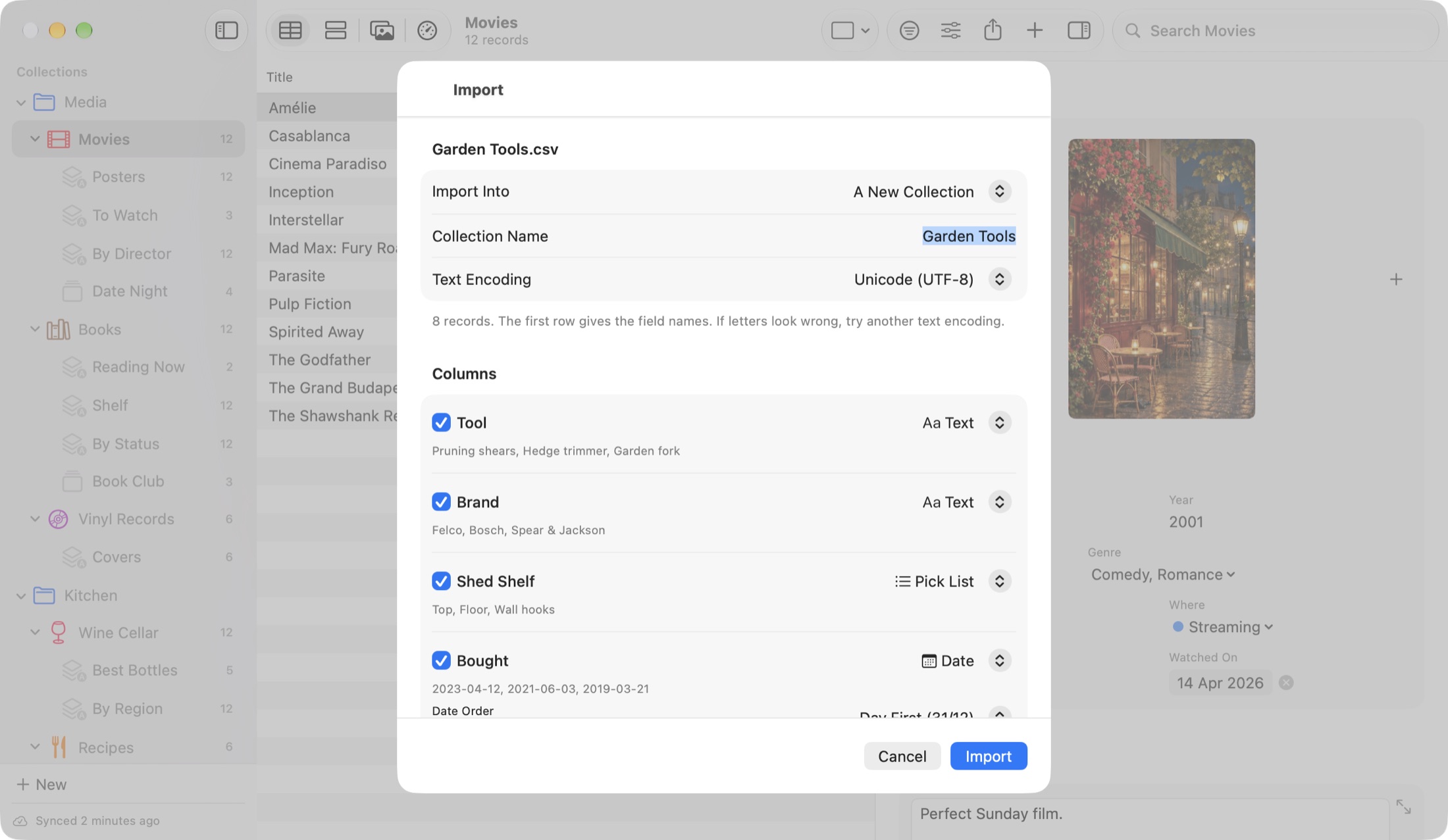
- Import Into: (name it), or an existing collection.
- Text Encoding: if letters look wrong, try another one.
- Sheet: for Excel workbooks with several sheets.
- Date Order (Day First 31/12 or Month First 12/31) and Decimal Mark (1,234.5 or 1.234,5), when the file doesn't make them clear.
- Columns: RafiBase guesses each type (text, number, currency, date, checkbox, pick list) from all the rows. Change any type, or untick a column to leave it out.
The first row must hold the field names. The import makes a safety backup first, and one Undo takes the whole import back.
Updating records you already have
Import into an existing collection and choose and the field that identifies each record, such as a SKU, an email or a barcode. Matching rows update those records (empty cells leave values alone), and you choose whether rows that match nothing are added. The report says how many were updated, unchanged and added.
Photos and files
A column of file names or paths, like photos/label.jpg, can become a Photo or File field. Choose the folder they're in (usually the spreadsheet's). Files that can't be found are listed in the report.
Exporting records
Choose (⇧⌘E). It exports what the window shows: the smart list, filter, search and sort.
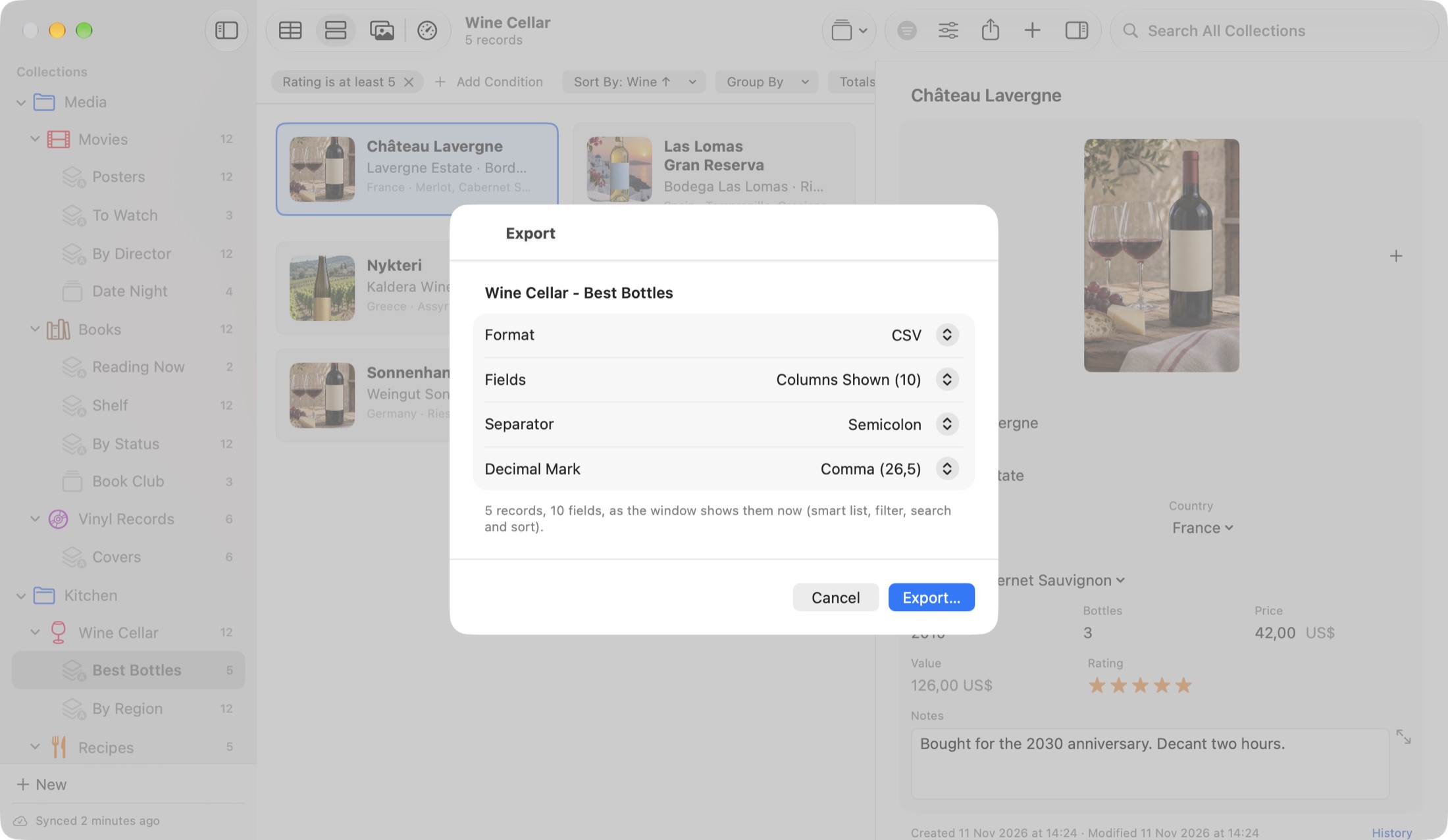
- Format: CSV, Excel or JSON.
- Fields: the columns shown, or all fields.
- CSV: choose the separator (comma, semicolon or tab) and decimal mark to suit your spreadsheet.
- Excel: a formatted workbook with a frozen header, filter arrows, number and currency formats, and clickable links. adds each record's first photo in its row.
- Include Photos and Files: RafiBase makes a new folder (such as "Books Export") with the file and the photos and files, linked from the CSV.
Exporting the whole library
makes one .rafibase file with the collections you tick: fields, smart lists, lists, records, and every photo and file. It's an ordinary ZIP holding readable JSON. Import it on another Mac with ; the preview lists what's inside before anything is added.
A copy any app can read
In , keeps a CSV file of every collection, with its photos and files, in a folder you choose. It's updated once a day and when RafiBase quits, so your data never depends on RafiBase. See chapter 14.
12Photos, Scans and Sharing
Text in photos
RafiBase reads the text in your photos on the device, a few seconds after you add them. Search then finds the record from words on a receipt, a wine label or a warranty card, and shows "Found in photo:" with the matching line. To see all the text in a photo, open it and choose (on iPhone, touch and hold the photo and choose ), then .
Each Photo field has (on at first), and , which copies the text into a Long Text field you choose, such as a Receipt Text field. Reading the text never changes the record otherwise.
Photo to Fields
On devices with Apple Intelligence, RafiBase can fill in a record from a photo: a wine label gives the wine, producer and vintage; a receipt gives the shop, date and amount. Choose on the Mac, or on iPhone and iPad.
- You review what was read before anything is saved. Fields that came from the photo are listed first.
- Tap a field to pick another suggestion from the photo, such as a different amount.
- makes the record with the photo. With several photos, each gets its own review, and leaves one out.
- For a record you already have, right-click a photo and choose .
Barcodes in pictures
In a collection with a Barcode field, every picture you add is checked for barcodes. RafiBase asks, for example, "Found a barcode: SN-90210-KB. Put it in Serial Number?", with , or . On the Mac, drop a picture straight onto a Barcode field to read its code without keeping the picture.
Dropping files on the list
Drop photos or files from Finder or Photos onto the table, cards or gallery to make new records named after the files. With several files, a sheet asks whether to make one record for each or one record with them all, which field to put them in, and whether to fill in fields from each photo. One Undo removes all the new records.
Capture on iPhone and iPad
In a collection with a Barcode, Photo or Location field, the camera button beside opens :
- : a code already in the collection opens that record; a new code makes a new record.
- or : a new record with the photos.
- , where Apple Intelligence is available.
- : a new record with where you are and its address.
Places on a map
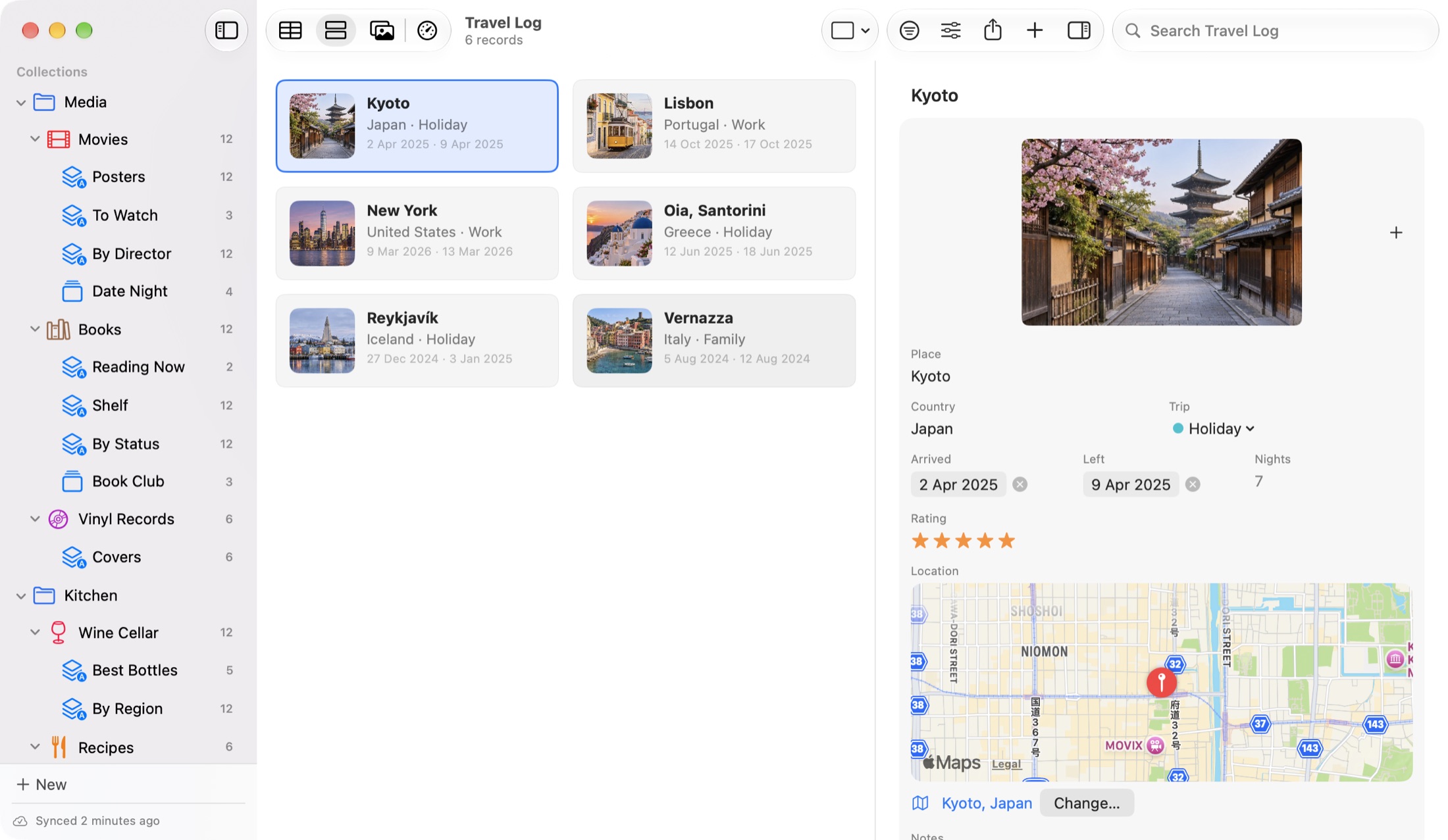
Click in a Location field to search for a place, or click the map to drop a pin. The address can be edited as a label. Click the map on the form to open the place in Maps. On iPhone and iPad, fills in where you are.
Save to RafiBase from the Share menu
Share a photo from Photos, a page from Safari, a PDF from Files or a note from Notes, and choose . Pick the collection, the title and the field, and tap . A link becomes a record named after the page, with its address in a Website field; text puts its first line in the title. RafiBase adds the item the next time it's open, with a notice, and one Undo removes it. Open RafiBase once after installing, so the Share menu knows your collections.
13Sync with iCloud
With the same Apple Account on your Mac, iPhone and iPad, RafiBase keeps one library on all of them through your private iCloud. The data is encrypted and only your devices can read it. Everything syncs: collections, fields, records, photos and files, lists, smart lists, folders, layouts, rules, dashboards, icons, colors and the order of the sidebar.
Some things stay on each device: History, table column widths, which folders are open, and how All Records is sorted and grouped.
The status line
The bottom of the sidebar always says what sync is doing, in plain words:
| Synced 2 minutes ago | Everything is up to date. |
| Checking iCloud… | Looking for changes from your other devices. |
| Syncing 12 changes… | Sending your changes. |
| Uploading: 1,200 of 5,000 changes sent | A big first upload. The Mac stays awake until it's done, and it carries on after quitting. |
| Can't reach iCloud right now. Changes wait on this device. | No connection. Nothing is lost; it catches up later. |
| Not signed in to iCloud. Your library stays on this device. | Sign in to an Apple Account to sync. |
| Sync is paused | You paused it in Settings. |
Controls
- (⌃⌘S) checks and sends right away.
- has Sync Now, and , a readable list of what sync did lately, with .
- To turn sync off for the whole Mac, use System Settings > Apple Account > iCloud.
Photos on iPhone and iPad
Thumbnails always come down. Full-size photos and files download when you open them (they show a small cloud badge until then). Turn on in Settings to have them all.
When two devices change the same thing
Each field merges on its own, so editing the price on your Mac and the notes on your iPhone keeps both. If both change the same field, the later edit wins, and the other value goes into the record's History marked "Replaced by a newer edit from another device", with a Restore button.
Account changes
RafiBase never mixes two people's data. If a different iCloud account signs in, it stops and asks: (stays here, with sync off), (a backup is made first), or . If RafiBase's data is removed from iCloud, it asks whether to upload the library again. Nothing on your device is deleted either way.
14Keeping Your Data Safe
Nothing you change or delete in RafiBase is gone at once. Undo, Trash, History and backups each bring it back in their own way.
Undo
(⌘Z) takes back the last change, however big: an import, a bulk edit, a deleted collection, a template. The menu names the step ("Undo Delete Records"). Notices at the bottom of the window also offer Undo. Each window keeps its Undo until you quit. On iPhone and iPad, Undo and Redo are at the top of the menus.
Trash
Deleted records, fields, smart lists, lists and collections go to Trash, the last row of the sidebar, with their photos, links and list memberships.
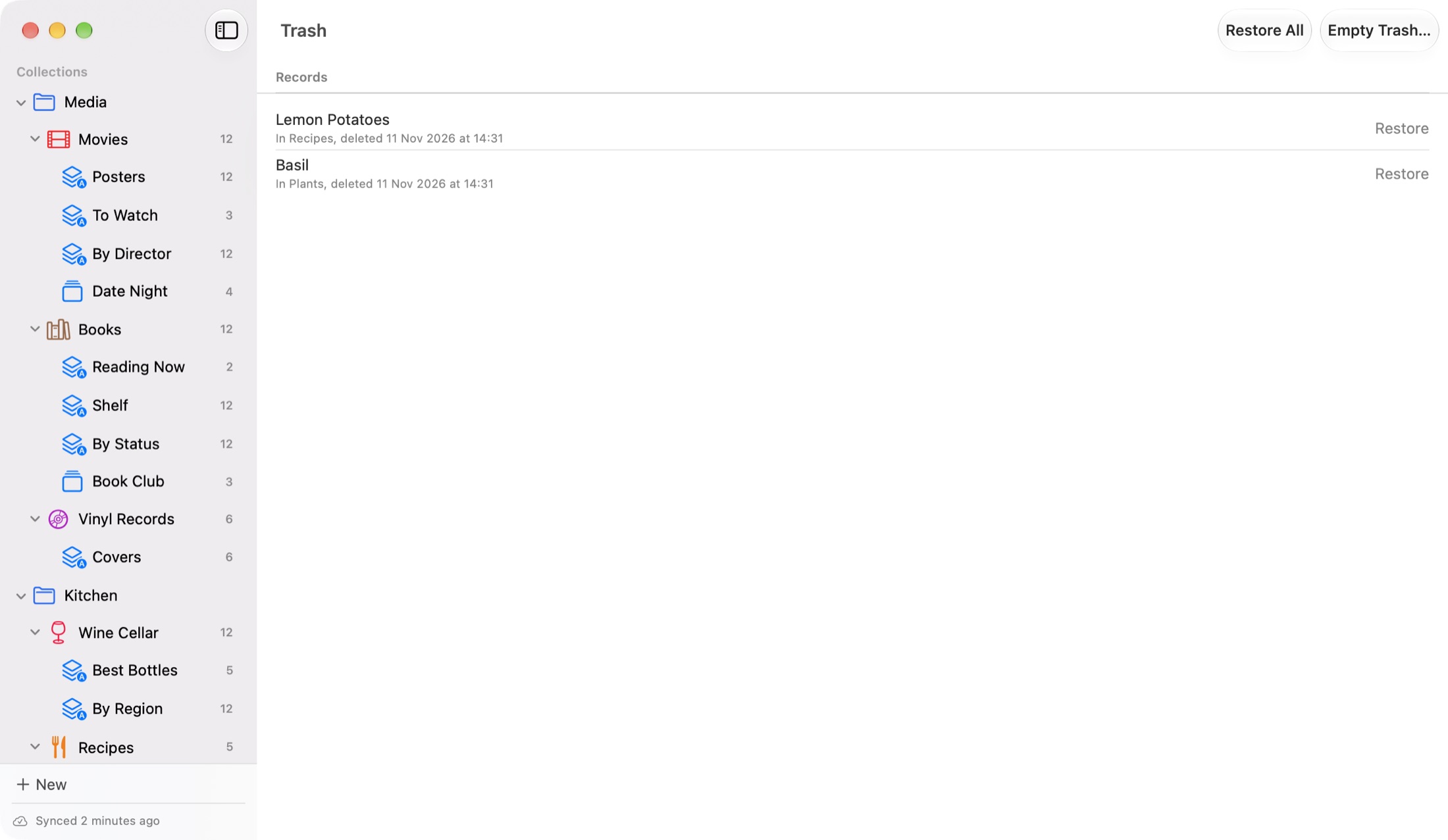
- puts an item back where it was; does them all.
- Items stay 30 days, then are deleted for good on every device, after a safety backup.
- and remove them sooner. They ask first, make a safety backup, and can't be undone.
Deleted folders don't go to Trash; Undo brings them back.
Record History
Click under a record's form, or choose (⌥⌘Y), to see every change to the record in the last 90 days: when, where it came from, and the old and new value. puts an old value back.
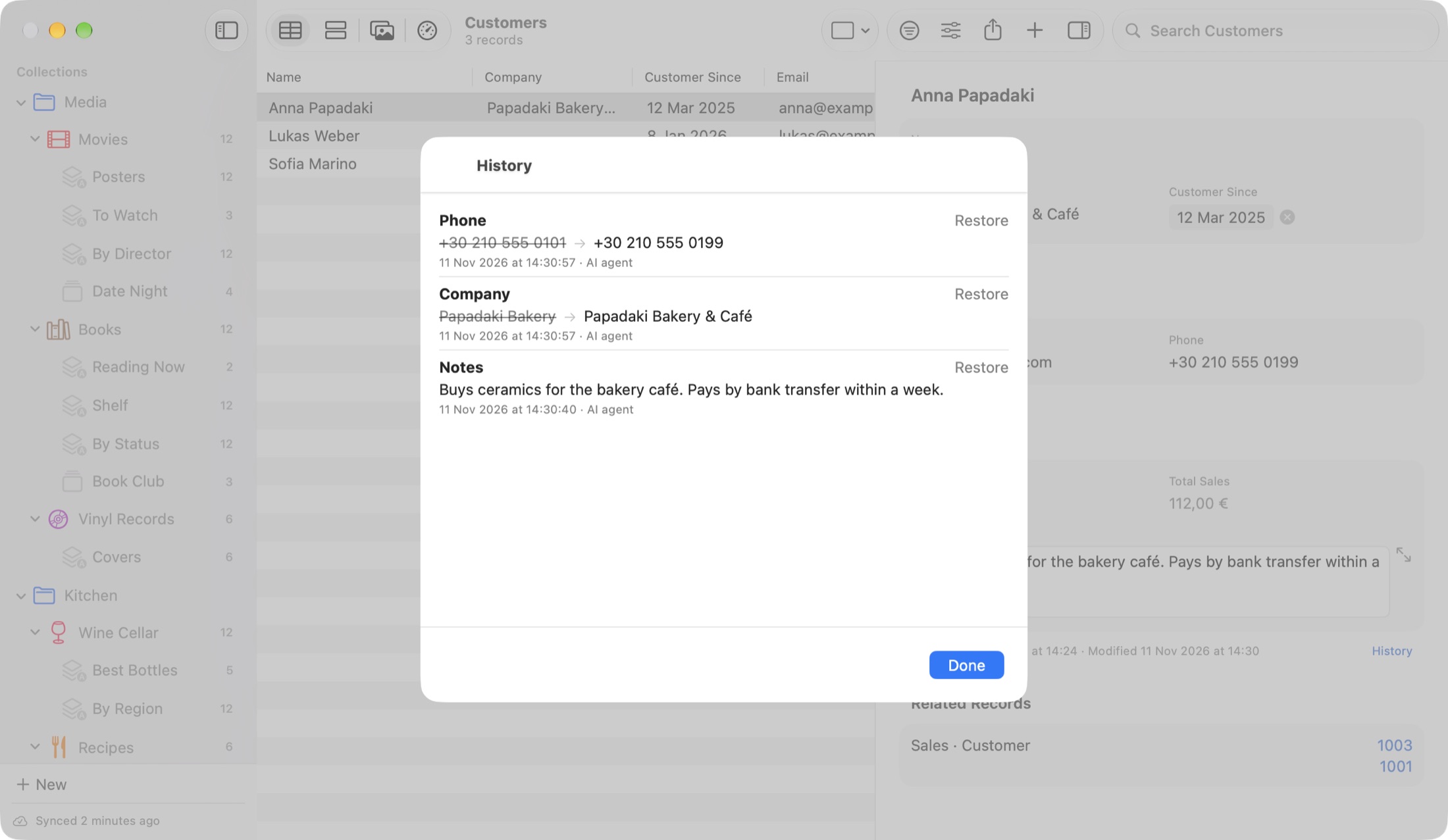
History is kept on each device, and doesn't sync.
Backups
RafiBase backs up the whole library once a day, and keeps one for each of the last 14 days and one a month for 6 months. Before anything big (an import, a restore, deleting a collection, emptying Trash) it makes a safety backup, even if daily backups are off. Backups you make yourself with are kept too (the last 10). Photos and files stay with the library rather than being copied into each backup.
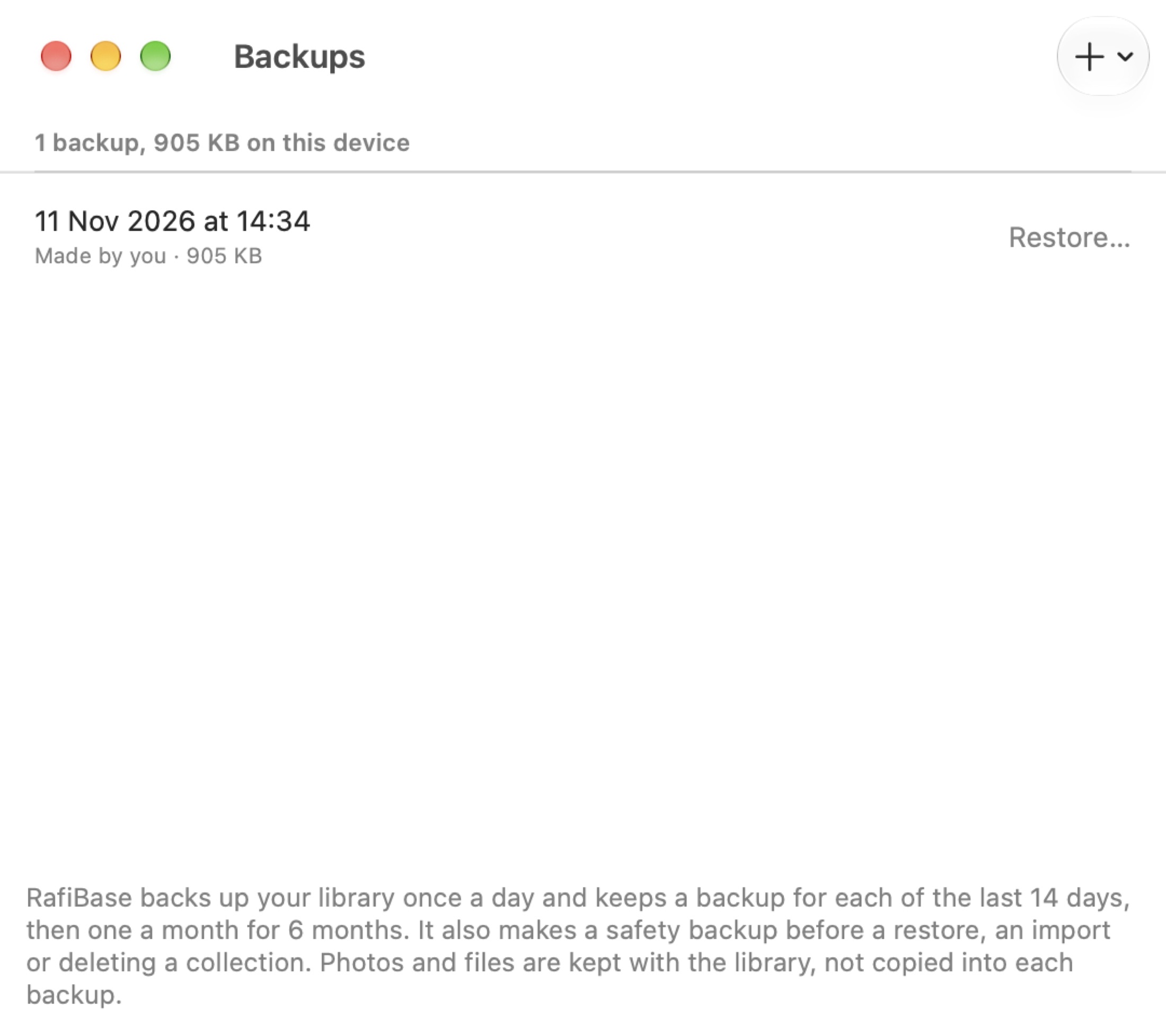
- asks first, backs up the library as it is now, and returns it to that moment on every device. Anything added since goes to Trash, and Undo reverses the restore.
- checks the file before using it ("This file isn't a RafiBase backup. Nothing was changed.").
- Right-click a backup to restore it, show it in Finder, or move it to the Trash.
A copy any app can read
Turn on and choose a folder, such as one in iCloud Drive or on a backup disk. RafiBase keeps its own "RafiBase Open Copy" folder there, with a CSV file of every collection (all fields, hidden ones too) and a folder of its photos and files. It's updated once a day and when RafiBase quits, and RafiBase never touches anything else in the folder. If you ever stop using RafiBase, everything is already in a form any spreadsheet can open.
If the library won't open
RafiBase says why instead of showing an error: another copy has it open, the disk is full, it was made by a newer version, or it's damaged. Only a damaged library is offered a backup straight away, and the damaged file is kept beside it, renamed, so nothing is thrown away.
15Spotlight, Siri, Shortcuts and Widgets
Spotlight
Records and collections show up in Spotlight on the Mac, iPhone and iPad, found by their title, their text and even words in their photos. Choosing one opens RafiBase right on it. If Spotlight misses something, use .
Siri and Shortcuts
RafiBase adds these actions to the Shortcuts app:
| Add Record | Adds a record to a collection, with a title and field values. Defaults and rules apply. |
| Find Records | Finds records by words, or by a field and a condition, up to 1,000 at a time. |
| Get Field Value | Reads one field of a record as text. |
| Update Field | Changes one field of a record (an empty value clears it). |
| Open Collection, Open Record | Open RafiBase there. |
| Search All Collections | Opens RafiBase and searches everything. |
Siri understands these without any setup: "Add a record to Wine Cellar in RafiBase", "Find records in Books in RafiBase", "Search RafiBase", "Open Plants in RafiBase".
Widgets
Add RafiBase widgets to the Mac desktop, the iPhone and iPad Home Screen, or the Lock Screen. Touch and hold the widget and choose Edit to pick what it shows.
- Dashboard: one of a collection's dashboard widgets, such as the cellar value or a chart of sales (maps aren't offered).
- Collection: how many records a collection or smart list has, and the latest ones, such as "Reading Now".
Widgets update a few seconds after a change, including changes from your other devices, and a tap opens RafiBase on that dashboard, list or record.
16AI Agents
On the Mac, AI agents such as Claude Code and Codex can read and change your library through RafiBase, using the Model Context Protocol (MCP) or a command line. You can ask an agent things like "add this month's download numbers", "find wines I rated 5 that cost under 30" or "make a smart list of tasks due this week".
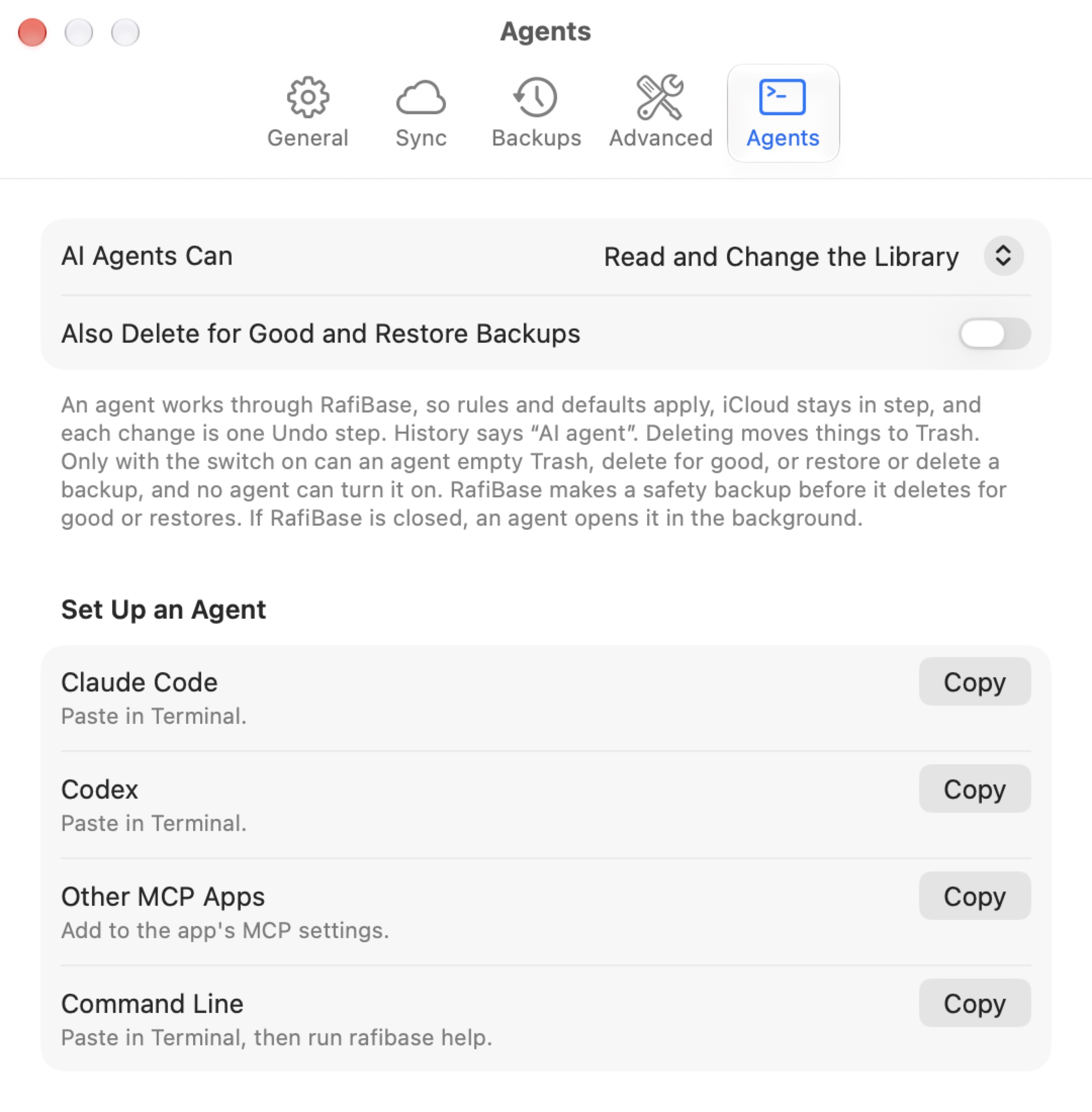
What agents may do
- : , , or .
- : off unless you turn it on. Without it, an agent can't empty Trash, delete anything permanently, or restore or delete a backup. No agent can turn it on itself.
Agents work through RafiBase, so everything stays safe: rules and defaults apply, iCloud stays in step, each change is one Undo step in the window, History says "AI agent", and deleting moves things to Trash. If RafiBase is closed, an agent opens it in the background.
Setting one up
Click beside your agent and paste the line where it says:
- Claude Code: paste in Terminal, then start a new Claude Code session.
claude mcp add --scope user rafibase -- "/Applications/RafiBase.app/Contents/MacOS/RafiBase" mcp - Codex: paste in Terminal.
- Other MCP Apps: add the copied entry to the app's MCP settings.
- Command Line: paste in Terminal, then run
rafibase help. Every tool is also a command, and answers in JSON:rafibase list-collections rafibase export-records --collection "Wine Cellar" --format xlsx > cellar.xlsx rafibase undo
After you update RafiBase, start a new agent session to pick up new tools.
What agents can do
| Read | list collections, describe a collection, find records, get records, search the whole library, read a photo or file, list Trash, export records |
| Change records | add, update, delete (to Trash), restore from Trash, duplicate, link, add and remove photos and files, edit a photo (rotate, crop, mark up), restore a value from History |
| Design | create and change collections, fields, smart lists, lists, folders, rules and dashboard widgets, and the form layout |
| Library | import a spreadsheet, list and make backups, settings, sync now, and undo the agent's last change |
match set to ["Date"]. If today's row is already there, it's updated instead of added a second time.Agents can't choose the Open Copy folder, import or export library archives, read files from a path on your Mac, or change their own access.
17iPhone and iPad
The iPhone and iPad apps do nearly everything the Mac does, with the same library through iCloud.
Collections
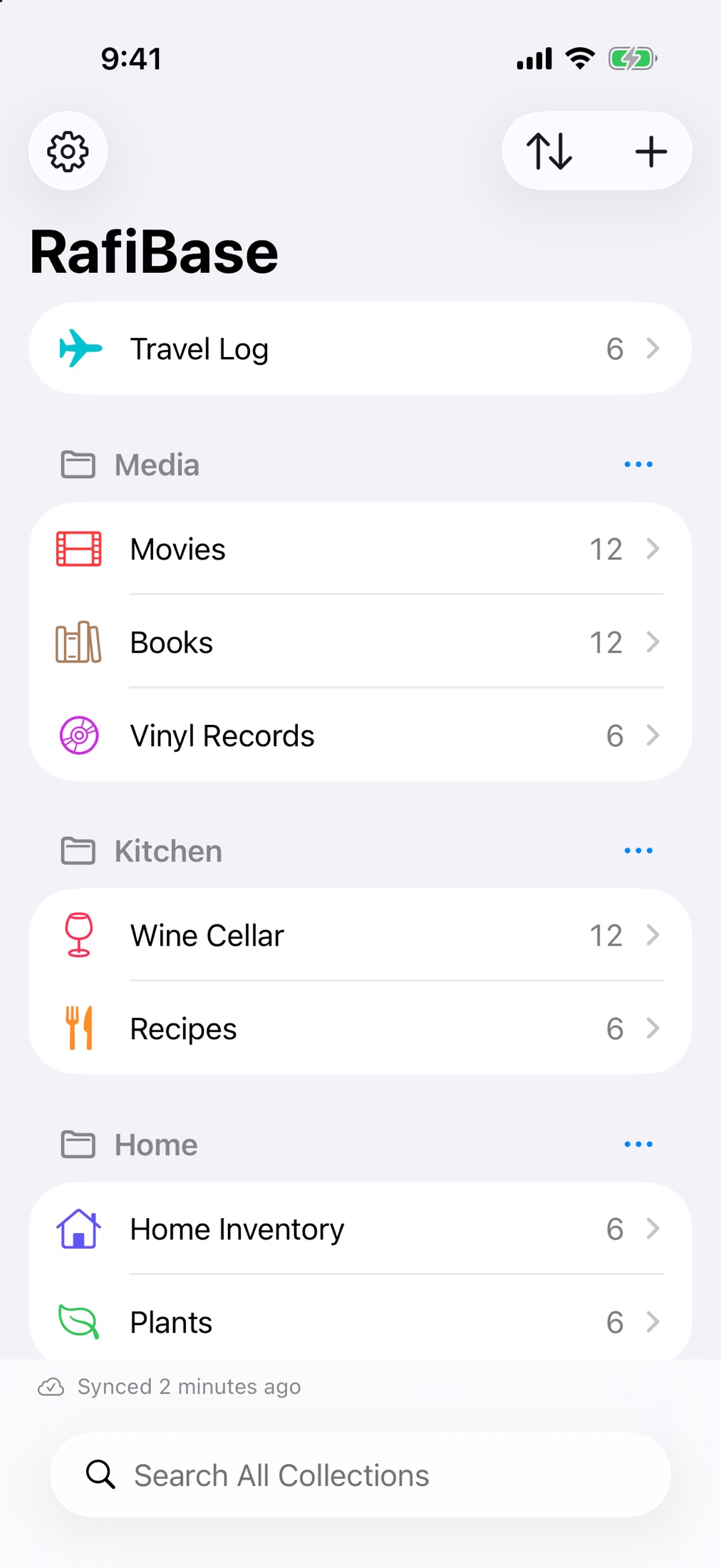
The first screen lists your collections, then a section per folder. At the top are Settings (the gear), (the arrows) and (New Collection, From a Template, Import from a File, New Folder). The search field searches every collection. Touch and hold a collection, or swipe it left, to rename it, change its icon and color, move it to a folder, duplicate or delete it.
A collection
Records show as Rows, Cards, a Gallery or the Dashboard. At the top are for a new record, the menu (see chapter 12), and :
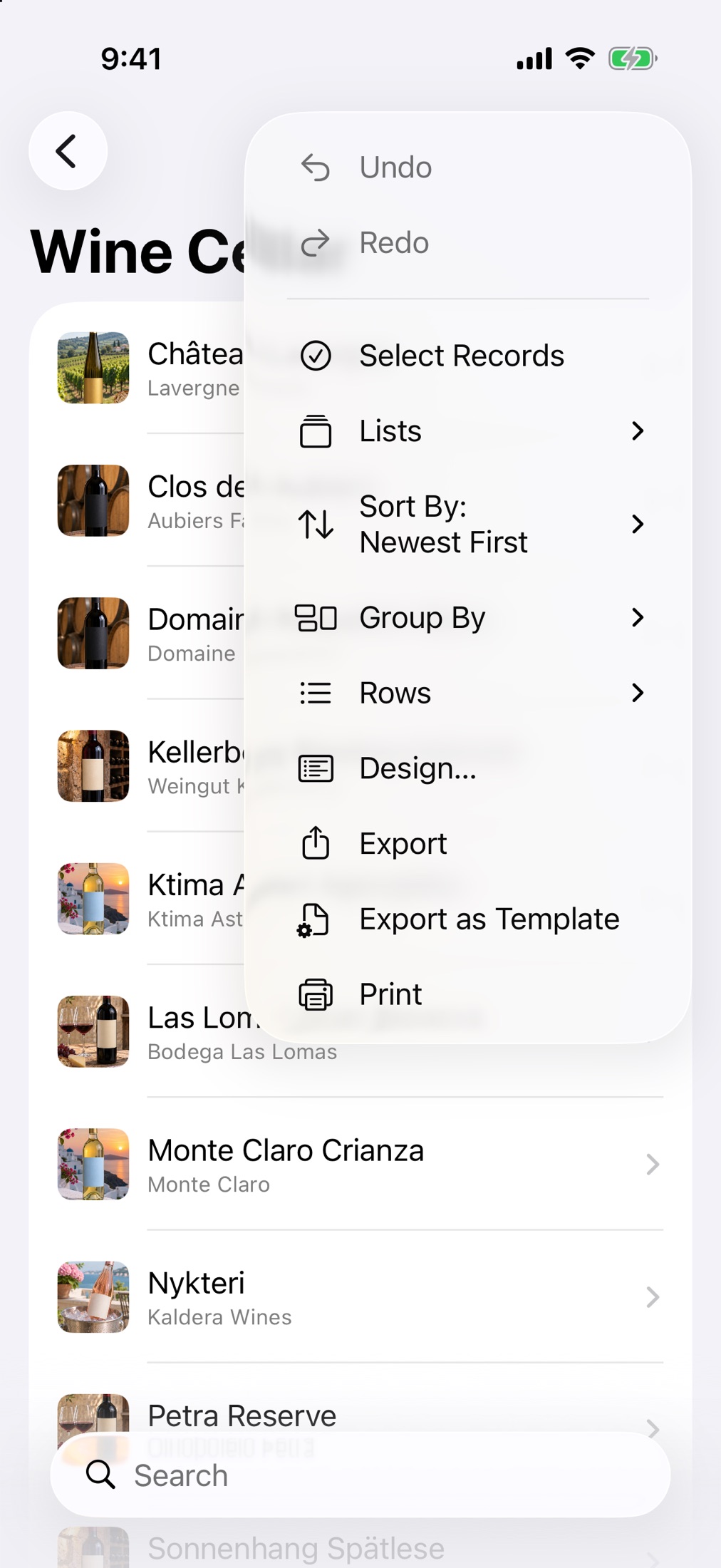
- : tick several to edit a field, add to a list, duplicate or delete them.
- : switch between All Records, lists and smart lists; make new ones; and , the iPhone's version of the filter bar.
- , (with Totals and ranges) and the view (Rows, Cards, Gallery, Dashboard).
- , , and .
Swipe a row left to delete it. Touch and hold a record to edit, duplicate, add to a list or delete it.
A record
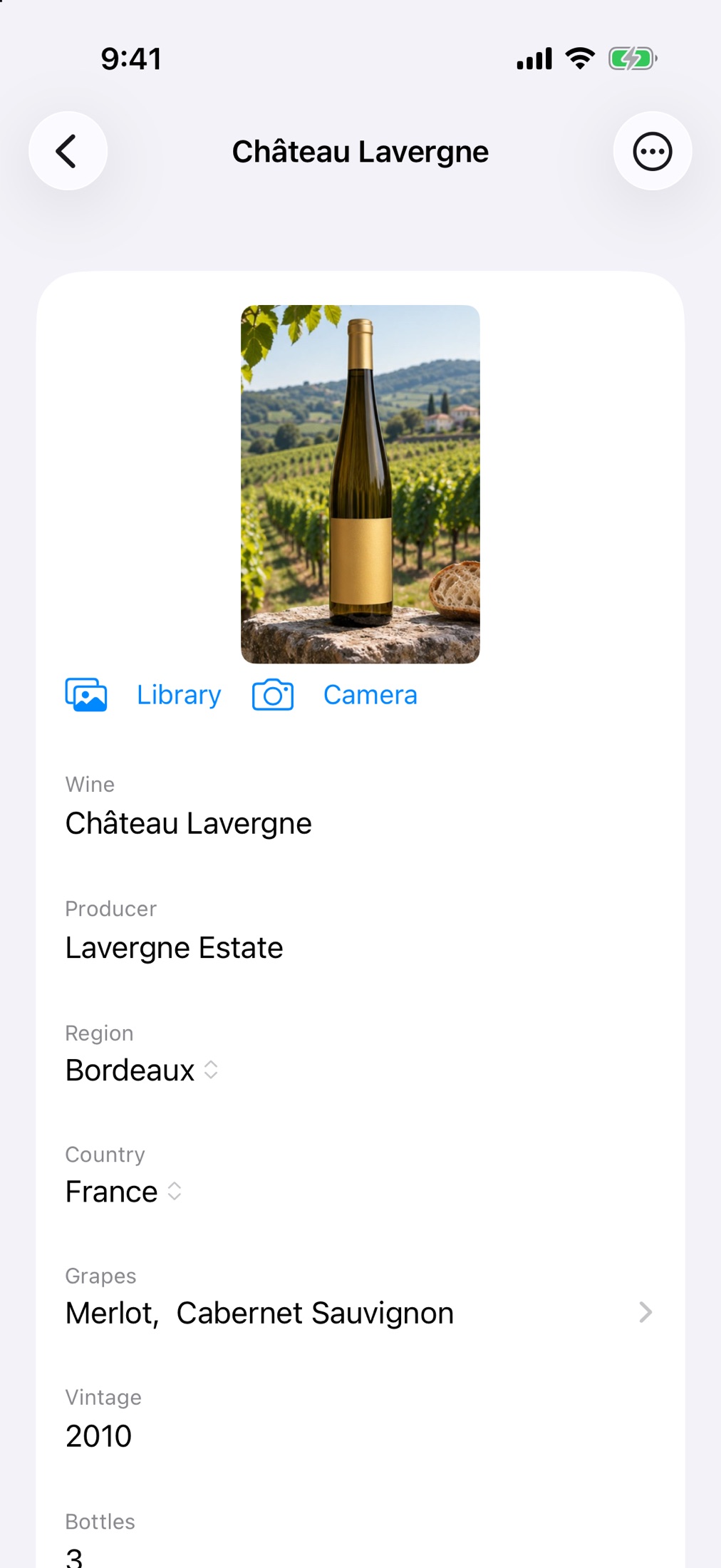
The iPhone shows one field per row. Photo fields have and buttons; tap a photo to see it, or touch and hold it to make it the cover, rotate it, read its text, or fill empty fields from it. The record's menu has Undo and Redo, Duplicate Record, History, Print and Delete Record.
Design on iPhone and iPad
has the same Fields, Layout and Rules tabs as the Mac, and the same options apart from Compact Rows and Field Names. Tap to drag fields into order, and to see the result.
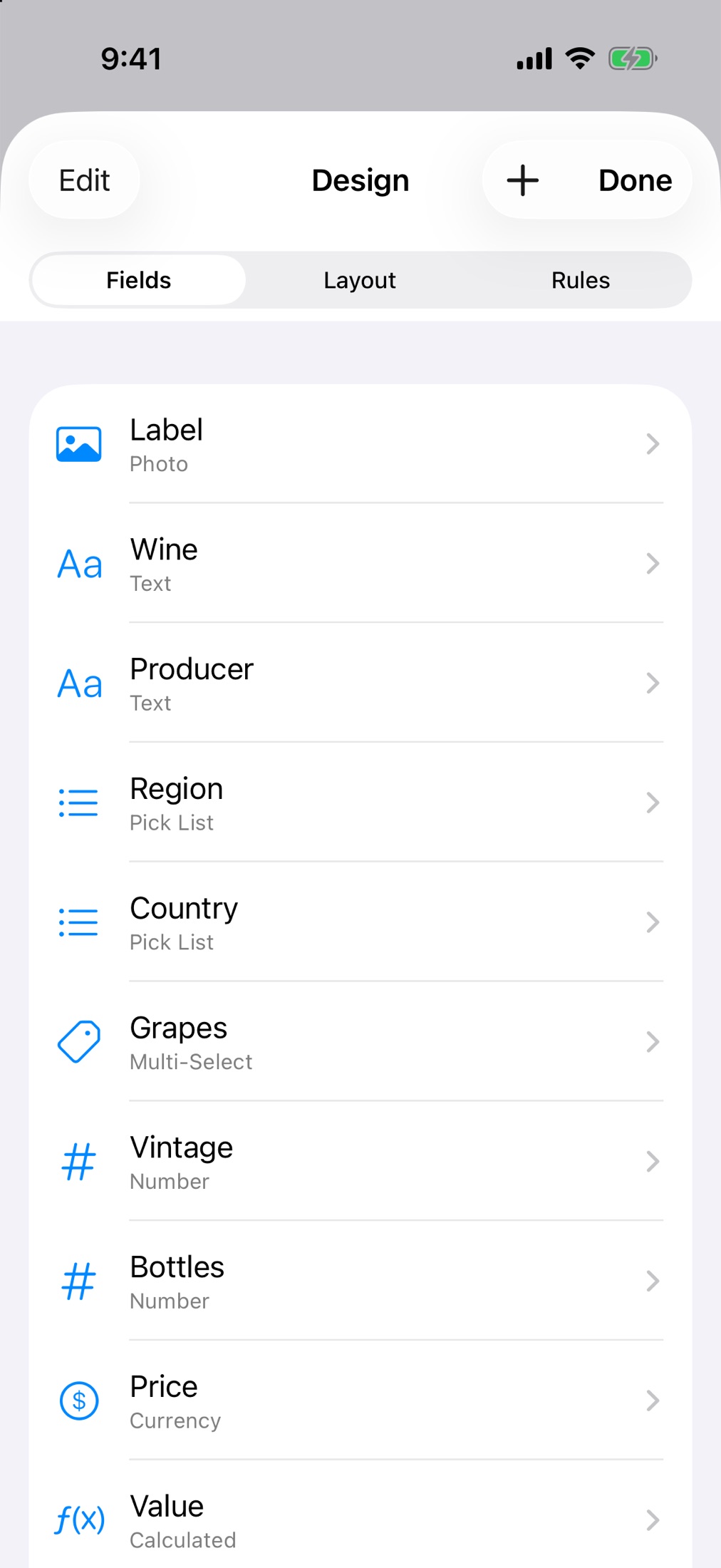
iPad
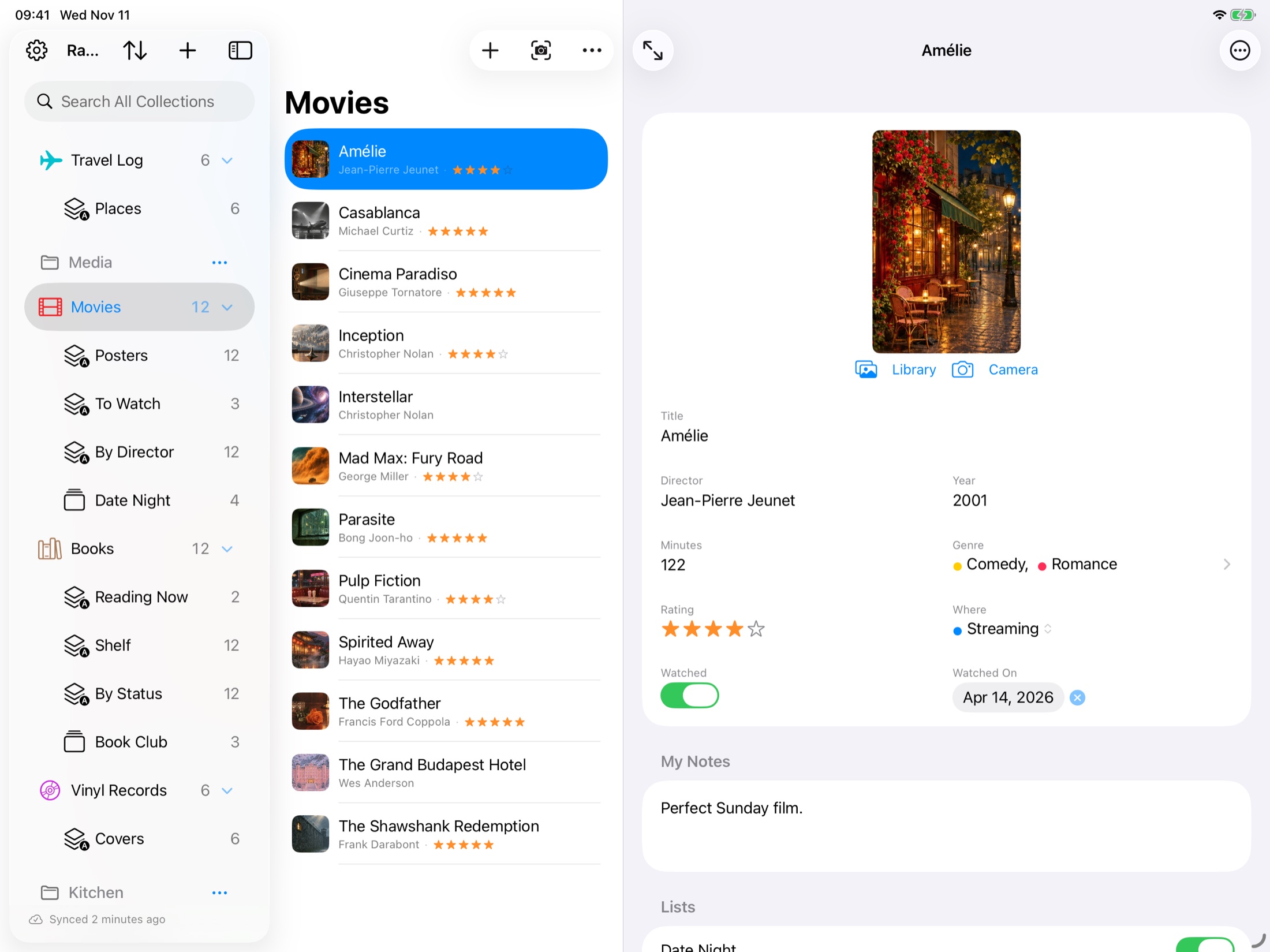
- In landscape, three columns: the sidebar, the records and the record. In portrait, the sidebar sits behind its button.
- The iPad also has a Table view, and its forms use the half and third widths from Design.
- With a keyboard, hold ⌘ for the menu bar: ⌘N New Record, ⌘F Find, ⇧⌘F Search All Collections, ⌘1 to ⌘5 for Table, Cards, Gallery, Dashboard and Rows, ⌥⌘D Design, ⌃⌘S Sync Now.
- Drag a photo or file from another app onto a Photo or File field to add it.
What's only on the Mac
Markup, the photo and PDF viewer windows, the long text editor, Continuity Camera, Keep Copies in a Folder, AI agents, Compact Rows, the filter bar (the iPhone has Filter by Rules), and grouping dates by day. Only on iPhone and iPad: Capture, Scan Barcode, Use Current Location and Keep All Photos.
18Settings
On the Mac choose (⌘,). On iPhone and iPad tap the gear on the collections screen.
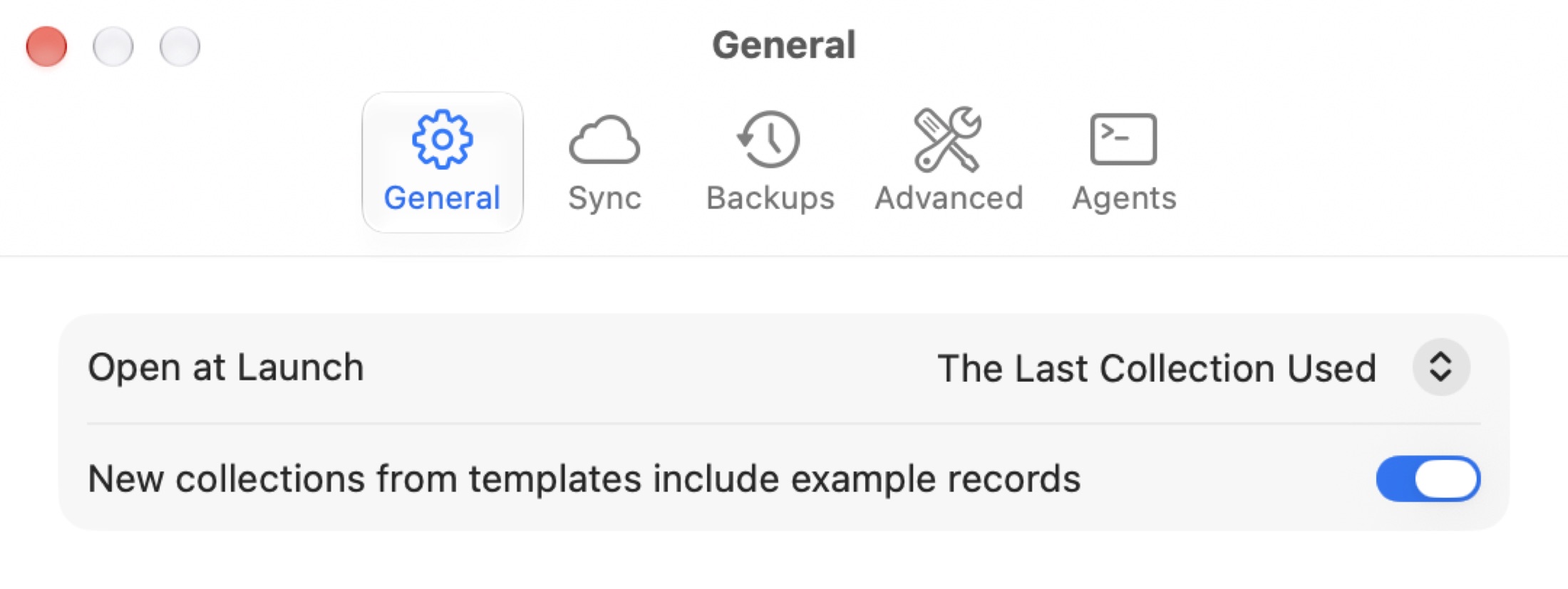
Mac
| General | : the last collection used, or one you choose. . |
| Sync | Status, Sync Now, Pause Sync, Sync Activity. |
| Backups | Keep Copies in a Folder, Back up automatically every day, the newest backups with Back Up Now, Restore from a File and Show in Finder. |
| Advanced | Search Index: Re-index. Thumbnails: Rebuild. Text in Photos: Read Again. Sync Activity: Show. |
| Agents | What AI agents may do, and how to set them up (chapter 16). |
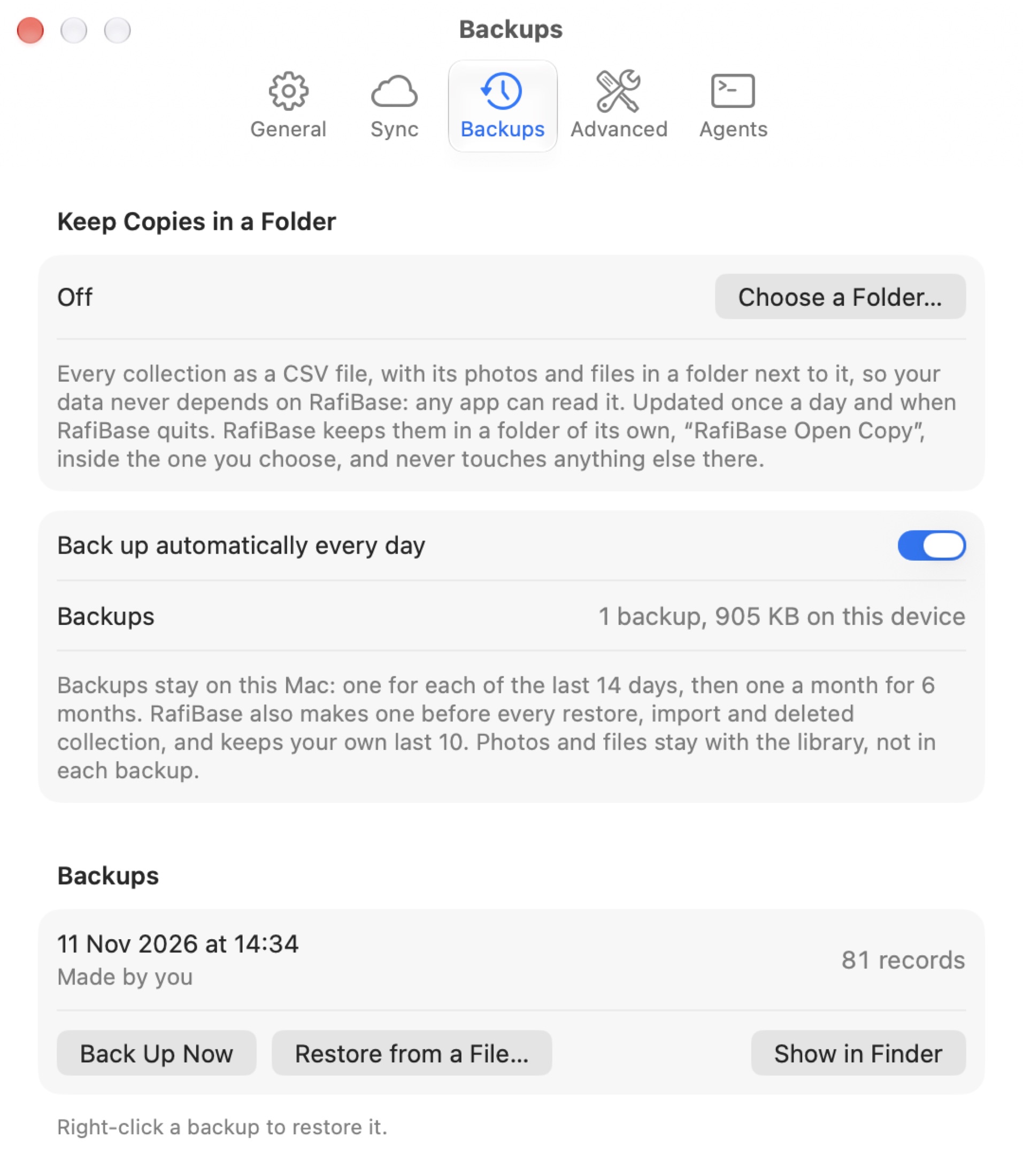
iPhone and iPad
| iCloud Sync | Status, Sync with iCloud, Sync Now, Keep All Photos on This iPhone, Sync Activity. |
| Backups | Back Up Every Day, the list of backups, Export Library. |
| Library | Trash, Templates Include Example Records. |
| Repair | Rebuild Search Index, Rebuild Thumbnails, Read Photos Again. |
| About | Version and Acknowledgements. |
19Keyboard Shortcuts
The full list is in (⌘/).
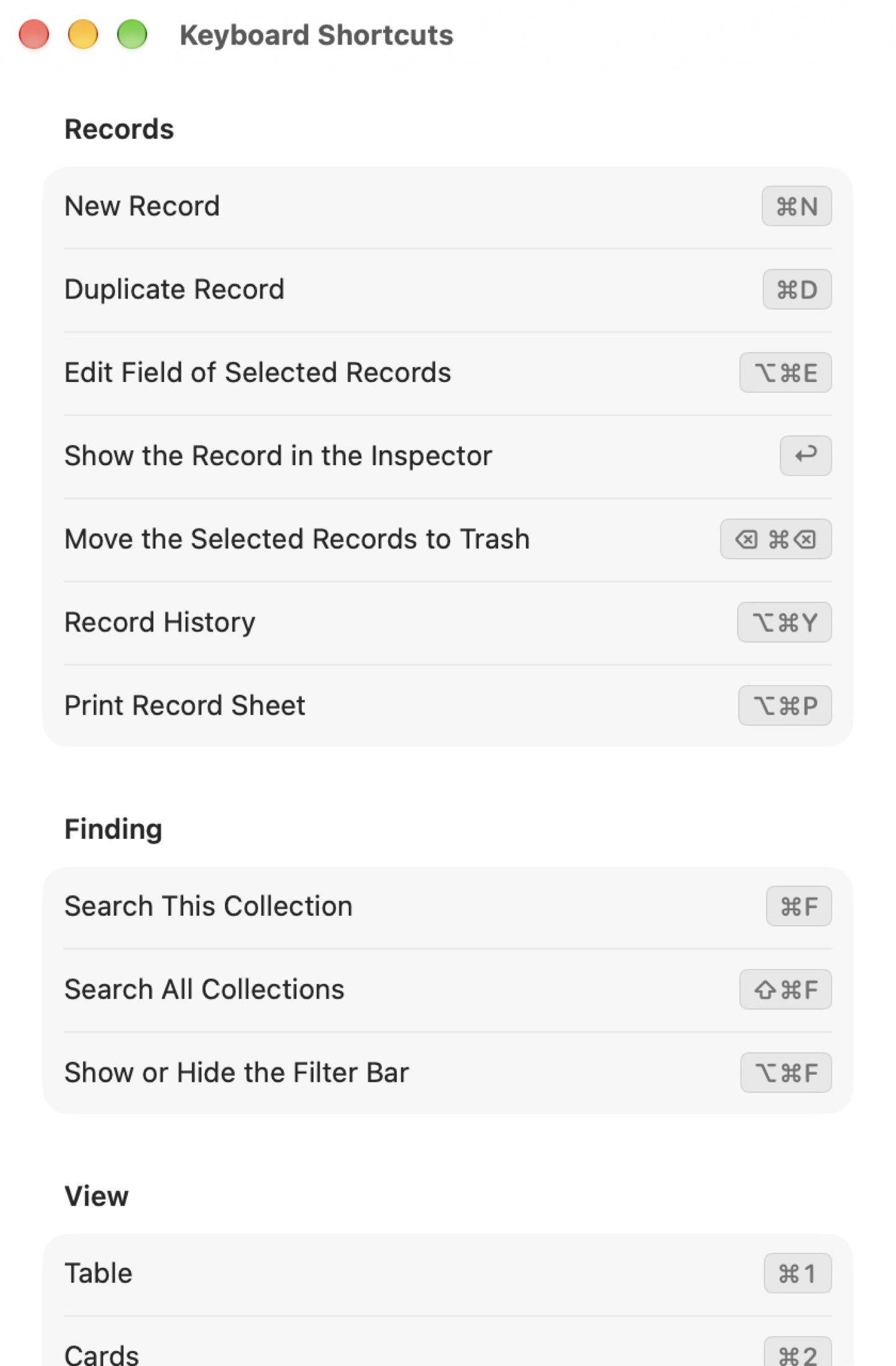
| Records | |
|---|---|
| New Record | ⌘N |
| Duplicate Record | ⌘D |
| Edit Field of Selected Records | ⌥⌘E |
| Show the Record in the Panel | ↩ |
| Move the Selected Records to Trash | ⌫ or ⌘⌫ |
| Record History | ⌥⌘Y |
| Print Record Sheet | ⌥⌘P |
| Finding | |
| Search This Collection | ⌘F |
| Search All Collections | ⇧⌘F |
| Show or Hide the Filter Bar | ⌥⌘F |
| View | |
| Table, Cards, Gallery, Dashboard | ⌘1 ⌘2 ⌘3 ⌘4 |
| Show or Hide the Record Panel | ⌘I |
| Previous or Next Collection | ⌥⌘↑ ⌥⌘↓ |
| Collections and files | |
| New Collection | ⇧⌘N |
| Design | ⌥⌘D |
| Import, Export | ⇧⌘I ⇧⌘E |
| Print Report | ⌘P |
| Sync Now | ⌃⌘S |
| Settings | ⌘, |
| Undo, Redo | ⌘Z ⇧⌘Z |
| RafiBase Help, Keyboard Shortcuts | ⌘? ⌘/ |
| Photos and PDFs | |
| Open the Selected Photo or PDF, Quick Look | ↩ Space |
| Previous or Next Photo | ← → |
| Rotate Left or Right | ⌘L ⌘R |
| Markup, Photo Info | ⇧⌘A ⌥⌘I |
| Zoom In, Out, to Fit | ⌘+ ⌘- ⌘9 |
| Next or Previous Match in a PDF | ⌘G ⇧⌘G |
In sheets, ⌘Return is Done or Save and Escape is Cancel. While typing in a text box, ⌘⌫ deletes to the start of the line rather than deleting the record.
20Limits and Good to Know
Numbers worth knowing
| Trash | Items stay 30 days |
| Record History | 90 days, on each device |
| Daily backups | The last 14 days, then one a month for 6 months; your own last 10 |
| Sorting and grouping | Two levels each |
| Fields under a record's name | Up to four (the gallery shows three) |
| Rating | 0 to 5 |
| Decimals | Automatic, or 0 to 4 |
| Photos or files per field | No limit, or a maximum you set (1 to 20) |
| Dashboard | 10 bars or 6 slices, then Other; maps up to 1,000 places |
| Search All Collections | 300 matches at a time, with Show 300 More |
| Template files | Up to 2 MB |
| Library archives | Up to 4 GB with photos |
RafiBase stays quick with tens of thousands of records in a collection. Very big collections (from about 5,000 records) open in the background, and big jobs show a progress panel.
Good to know
- The title of a record must be a text-like field (Text, Barcode, Website, Email or Phone), not a number or date.
- Excel import reads
.xlsxfiles with the field names in the first row. Formulas come in as their last values. - Markup is for photos. To mark up a PDF, open it in Preview from the PDF window; that edits a copy.
- Reading text in photos and Photo to Fields don't read Greek yet, and text is read from photos, not PDFs.
- There are no record numbers that count up by themselves, because two devices working offline couldn't keep them unique. Sort by Date Created instead.
- Restoring a backup brings everything back except records that were already in Trash at the time and have been emptied since.
- Widgets for smart lists that depend on today's date (such as "due this week") update when RafiBase runs.
- Search matches words from their start.
Moving from another app
From Tap Forms, Bento, FileMaker, Numbers or Google Sheets, export each form or table as CSV or Excel and import it with . Photos come along if the spreadsheet lists their file names. To move a whole RafiBase library to a new Mac, sign in to the same iCloud account, or use and import the file there.
RafiBase User Guide. Screenshots show the example library made from RafiBase's templates.